


Google Slides Review: Pros, Cons, Features and Pricing


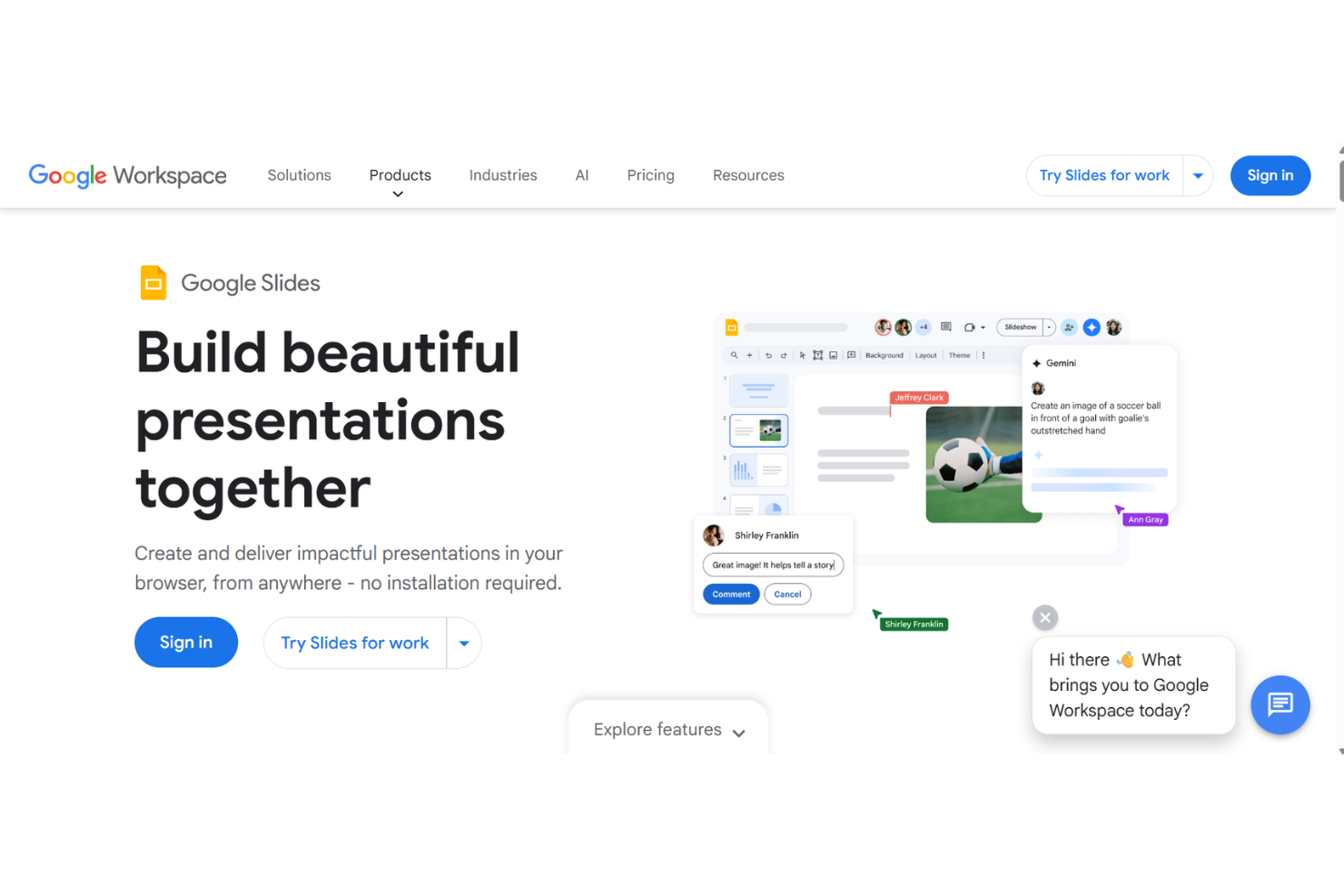
Google Slides is a free church presentation software that lets you create and share presentations online. It best serves small church teams and volunteer groups who need easy collaboration, like youth ministry coordinators and worship leaders. Its value lies in real-time teamwork without cost.
Google Slides addresses the need for easy collaboration and access, perfect for small teams. In this article, I'll cover Google Slides's features, pros and cons, use cases, pricing, and more so you can decide if this software aligns with your presentation needs and goals.
Google Slides Evaluation Summary
- Free
Why Trust Our Software Reviews
We’ve been testing and reviewing church management software since 2020. As church leaders ourselves, we know how critical and difficult it is to make the right decision when selecting software.
We invest in deep research to help our audience make better software purchasing decisions. We’ve tested many tools for different church management use cases and written over 1,000 comprehensive software reviews. Learn how we stay transparent & our software review methodology.
Google Slides Overview
In my opinion, Google Slides is a solid choice for church presentations and slideshows if you're looking for free cloud-based options. It's great for teams that need real-time collaboration without spending a dime. While it might not have the advanced features of paid software like ProPresenter, it outperforms in ease of use and accessibility. You can determine if it's right for your team by considering your need for simple, collaborative tools over complex features. It's best suited for small churches or volunteer groups that prioritize easy sharing and editing over bells and whistles.
pros
-
You can easily collaborate with your team in real-time.
-
It's simple to use, even for beginners.
-
You have access to it anywhere with an internet connection.
cons
-
It lacks advanced features found in specialized presentation tools.
-
You might find customization options limited for unique presentations.
-
It doesn't support offline editing without prior setup.
-

ChMeetings
Visit WebsiteThis is an aggregated rating for this tool including ratings from Crozdesk users and ratings from other sites.4.9 -
Gracely
Visit WebsiteThis is an aggregated rating for this tool including ratings from Crozdesk users and ratings from other sites.4.8 -
Text In Church
Visit WebsiteThis is an aggregated rating for this tool including ratings from Crozdesk users and ratings from other sites.4.6


How We Test & Score Tools
We’ve spent years building, refining, and improving our software testing and scoring system. The rubric is designed to capture the nuances of software selection and what makes a tool effective, focusing on critical aspects of the decision-making process.
Below, you can see exactly how our testing and scoring works across seven criteria. It allows us to provide an unbiased evaluation of the software based on core functionality, standout features, ease of use, onboarding, customer support, integrations, customer reviews, and value for money.
Core Functionality (25% of final scoring)
The starting point of our evaluation is always the core functionality of the tool. Does it have the basic features and functions that a user would expect to see? Are any of those core features locked to higher-tiered pricing plans? At its core, we expect a tool to stand up against the baseline capabilities of its competitors.
Standout Features (25% of final scoring)
Next, we evaluate uncommon standout features that go above and beyond the core functionality typically found in tools of its kind. A high score reflects specialized or unique features that make the product faster, more efficient, or offer additional value to the user.
We also evaluate how easy it is to integrate with other tools typically found in the tech stack to expand the functionality and utility of the software. Tools offering plentiful native integrations, 3rd party connections, and API access to build custom integrations score best.
Ease of Use (10% of final scoring)
We consider how quick and easy it is to execute the tasks defined in the core functionality using the tool. High scoring software is well designed, intuitive to use, offers mobile apps, provides templates, and makes relatively complex tasks seem simple.
Onboarding (10% of final scoring)
We know how important rapid team adoption is for a new platform, so we evaluate how easy it is to learn and use a tool with minimal training. We evaluate how quickly a team member can get set up and start using the tool with no experience. High scoring solutions indicate little or no support is required.
Customer Support (10% of final scoring)
We review how quick and easy it is to get unstuck and find help by phone, live chat, or knowledge base. Tools and companies that provide real-time support score best, while chatbots score worst.
Customer Reviews (10% of final scoring)
Beyond our own testing and evaluation, we consider the net promoter score from current and past customers. We review their likelihood, given the option, to choose the tool again for the core functionality. A high scoring software reflects a high net promoter score from current or past customers.
Value for Money (10% of final scoring)
Lastly, in consideration of all the other criteria, we review the average price of entry level plans against the core features and consider the value of the other evaluation criteria. Software that delivers more, for less, will score higher.
Core Features
Real-Time Collaboration
You and your team can edit presentations simultaneously, seeing changes instantly. This makes group work seamless and efficient.
Templates and Themes
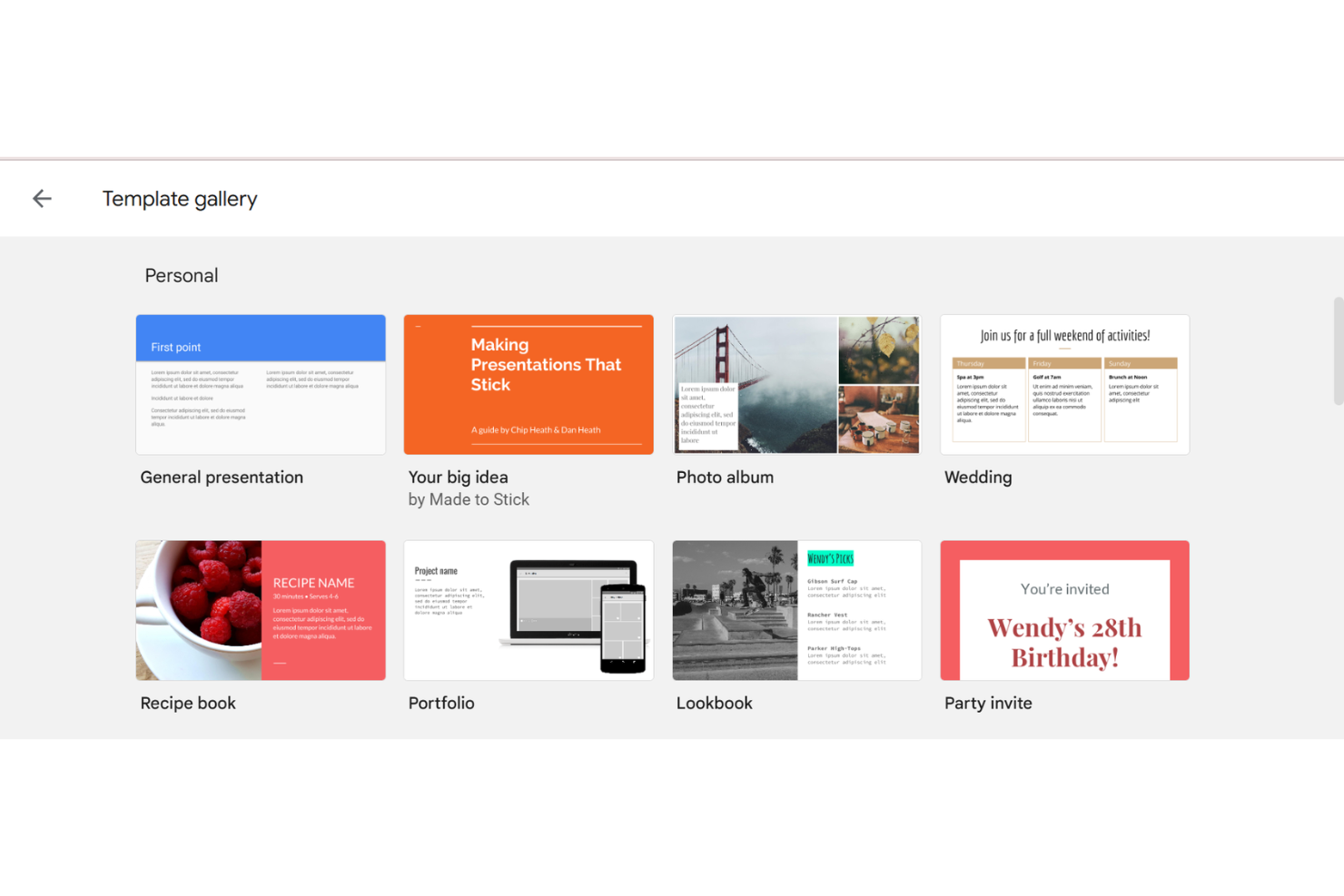
Google Slides offers a variety of templates and themes for your presentations. It helps you create professional-looking slides without design skills.
Cloud Storage
Your presentations are stored in the cloud, so you can access them anywhere with an internet connection. This makes sharing and collaborating easy.
Presenter View
You can use Presenter View to see your notes while presenting. It helps you stay organized and focused during your presentation.
Offline Access
You can enable offline access to work on presentations without an internet connection. This is useful for making edits on the go.
Version History
Google Slides keeps a version history of your presentations. You can revert to previous versions if needed, ensuring you never lose important changes.
Ease of Use
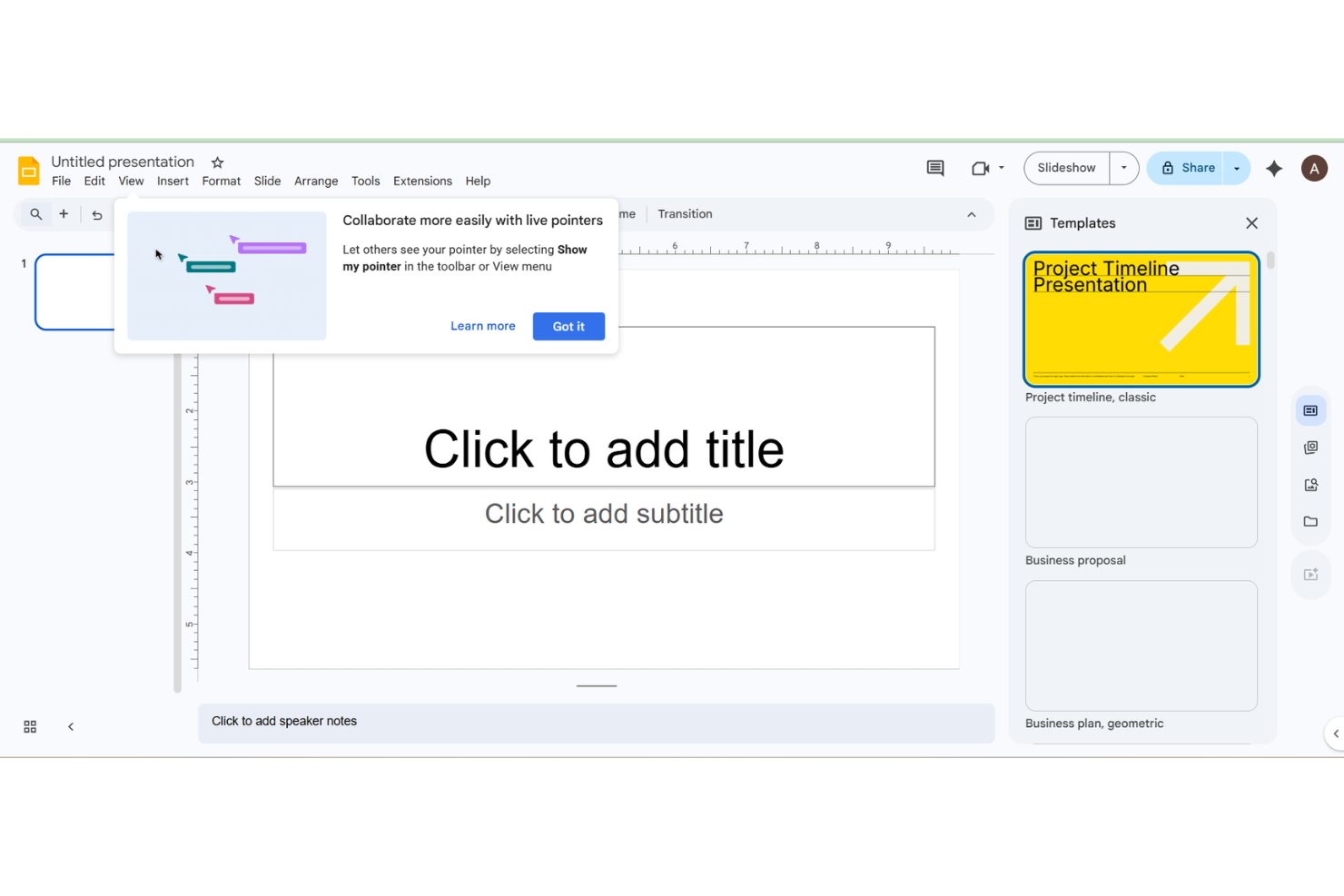
Google Slides is easy to use, making it perfect for teams without technical expertise. Its intuitive interface lets you quickly create and edit presentations, while real-time collaboration fosters teamwork. You don't need to download anything, and everything's accessible with an internet connection. User reviews highlight its straightforward design and simple navigation. If you're looking for a hassle-free tool to get presentations done efficiently, Google Slides is a solid choice.
Integrations
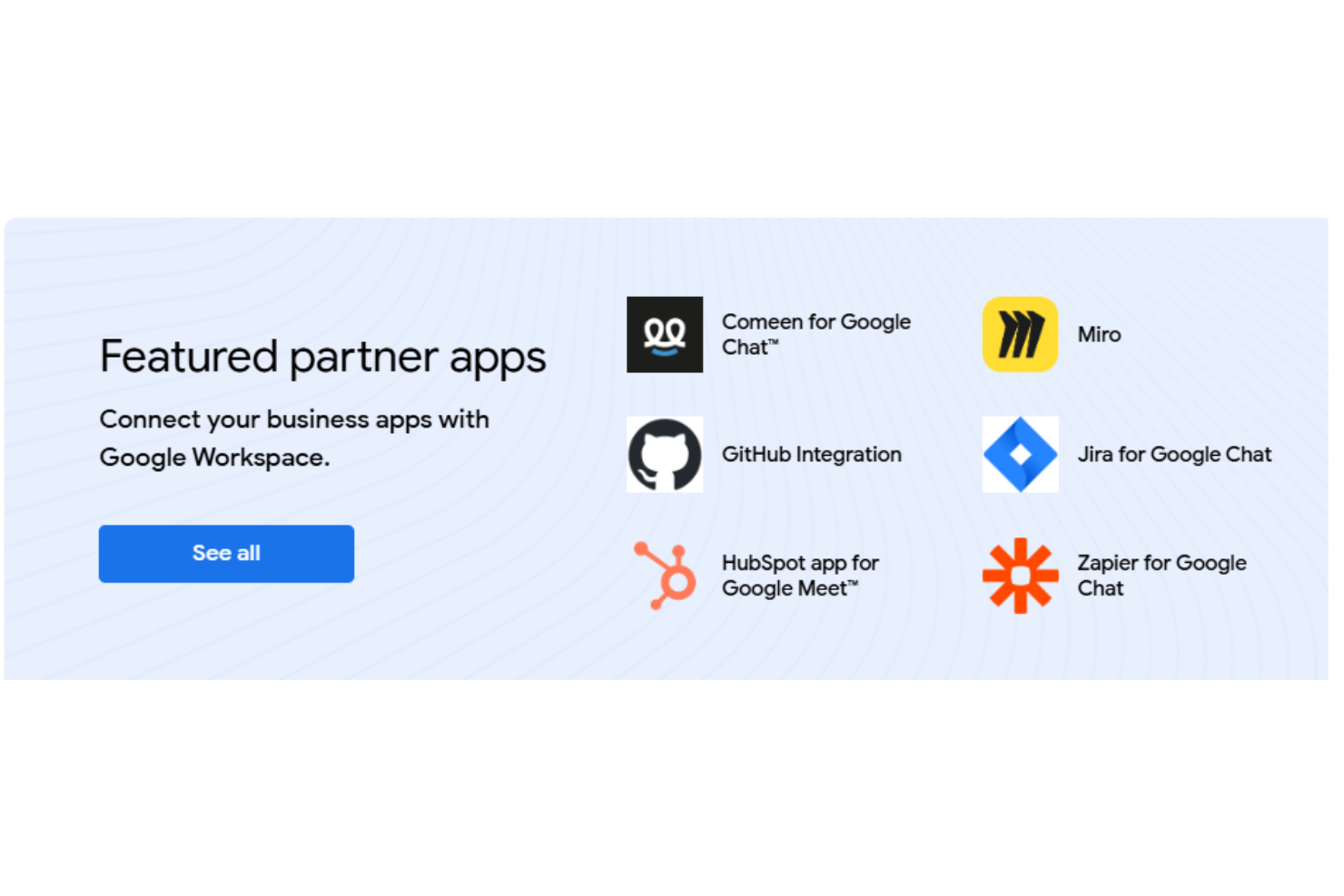
Google Slides integrates natively with a wide array of Google apps including Google Drive, Google Docs, Google Sheets, Google Meet, Gmail, and YouTube, enabling seamless content creation and sharing. It also supports integrations with tools like Miro, Jotform, Typeform, and HubSpot through add-ons, embeds, or automation platforms.
Google Slides provides an API and works with third-party integration tools such as Zapier for extended connectivity.
Google Slides Specs
- API
- Calendar Management
- Chat
- Data Export
- Data Import
- Data Visualization
- Document Comparison
- External Integrations
- History/Version Control
- Multi-User
- Notifications
- Scheduling