

Google Slides -arvostelu: hyvät ja huonot puolet, ominaisuudet ja hinnoittelu
Google Slides soveltuu erinomaisesti kirkkojen esityksiin yhteistyöominaisuuksiensa ja helppokäyttöisyytensä ansiosta, mikä tekee siitä erottuvan vaihtoehdon ilmaisten ohjelmistojen joukossa.

We review tools independently, and commissions help fund our testing. See our transparency policy, our methodology, or suggest a tool.
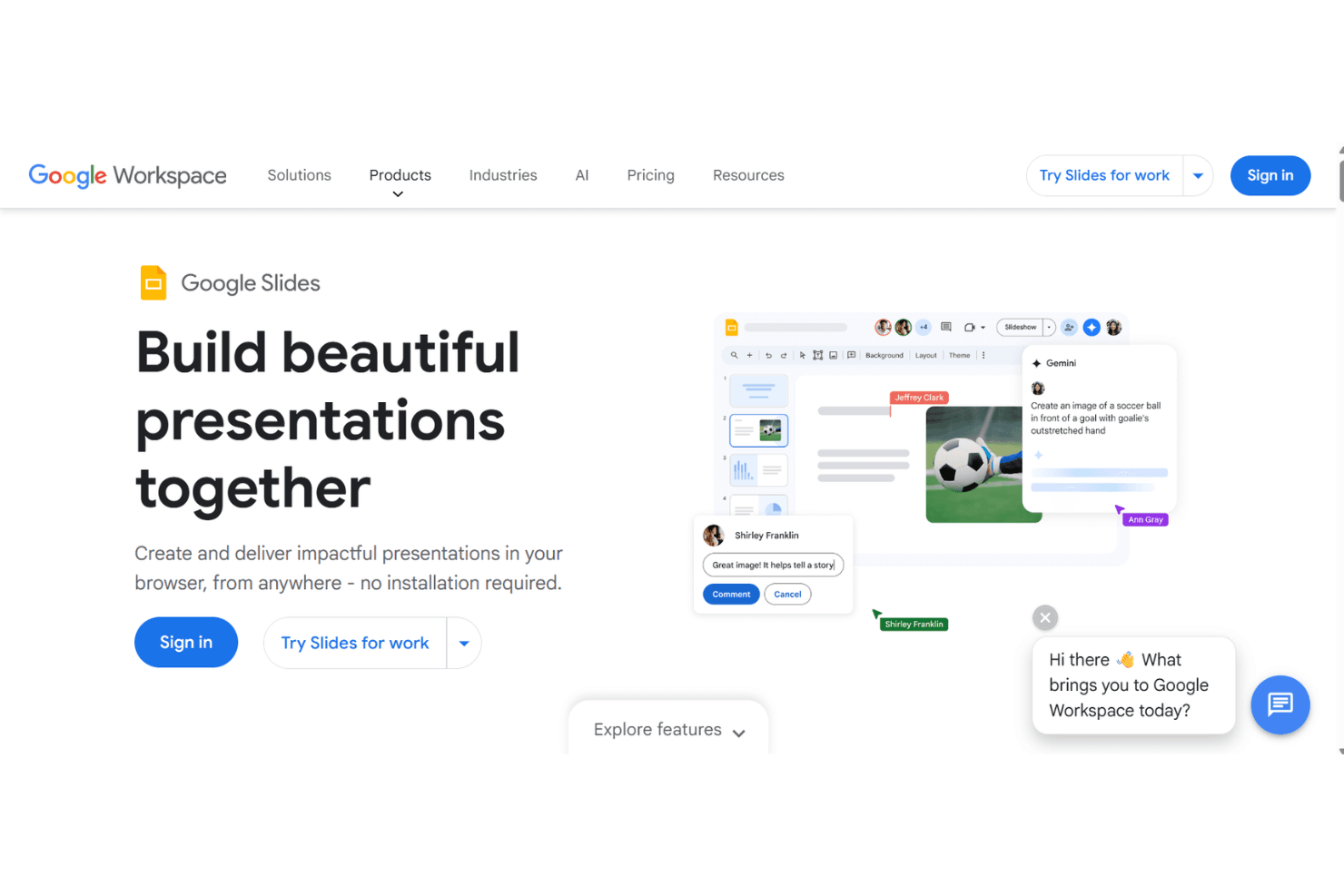
Google Slides is a free church presentation software built for creating and displaying slides across any device with a browser. It's worth considering if your church needs to put sermon notes, song lyrics, or announcements on screen without paying for a dedicated tool. I'd choose it over something like ProPresenter if budget is the primary constraint—you get real-time collaboration, cloud storage, and a familiar editing interface at no cost, even if it trades some of the worship-specific features that paid platforms offer.
Google Slides Evaluation Summary
4.6/5
- Free
Miksi luottaa ohjelmistosuosituksiimme
6,700+
Reviews
20
Industry experts
16+
Evaluation factors
14
Years
Tiimimme on testannut ja arvioinut ohjelmistoja vuodesta 2012 lähtien. Seurakuntajohtajina tiedämme itse, kuinka vaikeaa — ja tärkeää — oikean ohjelmiston valitseminen on.
Tätä opasta varten arvioimme työkaluja käytännön testauksen ja itsenäisen tutkimuksen avulla, pisteyttäen työkalut valintakriteeriemme perusteella.
Arvostelumme perustuvat inhimilliseen toimitukselliseen harkintaamme, eivät myyntipuheeseen.
Google Slides Overview
In my opinion, Google Slides is a solid choice for church presentations and slideshows if you're looking for free cloud-based options. It's great for teams that need real-time collaboration without spending a dime. While it might not have the advanced features of paid software like ProPresenter, it outperforms in ease of use and accessibility. You can determine if it's right for your team by considering your need for simple, collaborative tools over complex features. It's best suited for small churches or volunteer groups that prioritize easy sharing and editing over bells and whistles.
Pros
- You can easily collaborate with your team in real-time.
- It's simple to use, even for beginners.
- You have access to it anywhere with an internet connection.
Cons
- It lacks advanced features found in specialized presentation tools.
- You might find customization options limited for unique presentations.
- It doesn't support offline editing without prior setup.
Is Google Slides Right For Your Needs?
Who Would be a Good Fit for Google Slides?
Google Slides is great for small church teams needing easy collaboration without spending money. It suits youth ministry groups and volunteer teams who value real-time editing and sharing over complex features. If your team prefers working online and needs a tool that's simple to use, Google Slides is a good choice. Its functionality lets you focus on creating engaging online presentations without a steep learning curve.
- Small ChurchesGoogle Slides is ideal for small churches needing a free, easy-to-use tool for presentations.
- Volunteer GroupsIt's perfect for volunteer groups who need to collaborate on presentations without advanced features.
- Youth MinistriesYouth ministries benefit from its simplicity and real-time collaboration features.
- NonprofitsNonprofits can use Google Slides to create professional presentations without spending on software.
- Event PlannersEvent planners find it useful for quickly creating and sharing presentation materials online.
- Education DepartmentsEducation departments can use it for lesson planning to create slide decks easily.
Who Would be a Bad Fit for Google Slides?
Google Slides isn't ideal for large churches or organizations needing advanced presentation features. If your work requires intricate design elements or offline editing capabilities, you'll find Google Slides lacking. It's not suited for teams that need robust customization or specialized presentation tools. If your presentations demand high-level multimedia integration or detailed analytics, you might find Google Slides falls short in meeting those needs.
- Large CorporationsLarge corporations requiring advanced features won't find Google Slides sufficient for their complex presentation needs.
- Design AgenciesDesign agencies needing extensive customization and design tools will find Google Slides too basic.
- Media CompaniesMedia companies requiring high-quality multimedia integration will find Google Slides lacking.
- Offline TeamsTeams working primarily offline won't benefit from Google Slides as it relies on internet access.
- Data-Intensive DepartmentsDepartments needing detailed data analytics and reporting won't find Google Slides capable of meeting those demands.
- Advanced Marketing TeamsMarketing teams needing advanced features and integrations will find Google Slides too limited for their strategies.
How We Test & Score Tools
We’ve spent years building, refining, and improving our software testing and scoring system. The rubric is designed to capture the nuances of software selection and what makes a tool effective, focusing on critical aspects of the decision-making process.
Below, you can see exactly how our testing and scoring works across seven criteria. It allows us to provide an unbiased evaluation of the software based on core functionality, standout features, ease of use, onboarding, customer support, integrations, customer reviews, and value for money.
Core Functionality (25% of final scoring)
The starting point of our evaluation is always the core functionality of the tool. Does it have the basic features and functions that a user would expect to see? Are any of those core features locked to higher-tiered pricing plans? At its core, we expect a tool to stand up against the baseline capabilities of its competitors.
Standout Features (25% of final scoring)
Next, we evaluate uncommon standout features that go above and beyond the core functionality typically found in tools of its kind. A high score reflects specialized or unique features that make the product faster, more efficient, or offer additional value to the user.
We also evaluate how easy it is to integrate with other tools typically found in the tech stack to expand the functionality and utility of the software. Tools offering plentiful native integrations, 3rd party connections, and API access to build custom integrations score best.
Ease of Use (10% of final scoring)
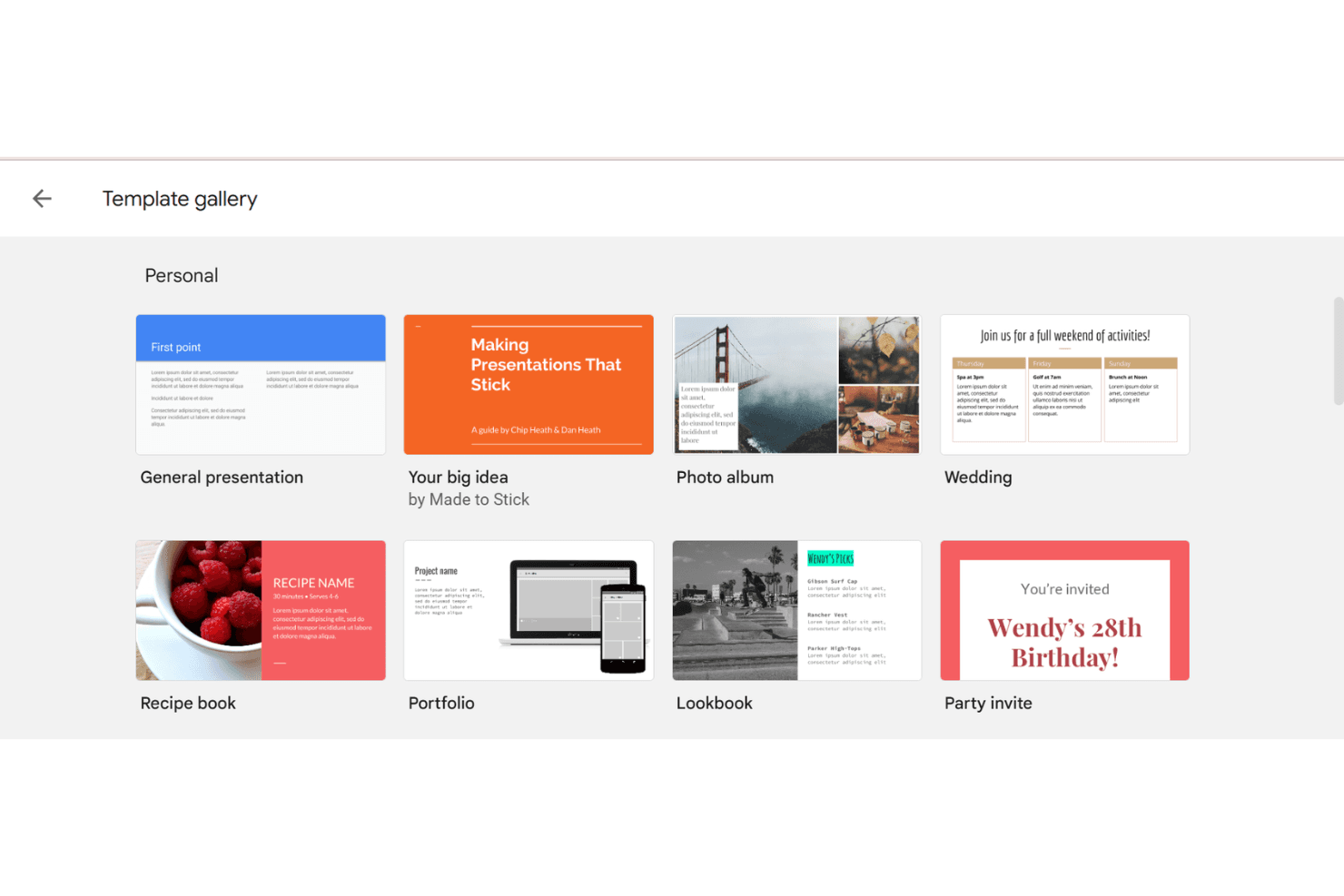
We consider how quick and easy it is to execute the tasks defined in the core functionality using the tool. High scoring software is well designed, intuitive to use, offers mobile apps, provides templates, and makes relatively complex tasks seem simple.
Onboarding (10% of final scoring)
We know how important rapid team adoption is for a new platform, so we evaluate how easy it is to learn and use a tool with minimal training. We evaluate how quickly a team member can get set up and start using the tool with no experience. High scoring solutions indicate little or no support is required.
Customer Support (10% of final scoring)
We review how quick and easy it is to get unstuck and find help by phone, live chat, or knowledge base. Tools and companies that provide real-time support score best, while chatbots score worst.
Customer Reviews (10% of final scoring)
Beyond our own testing and evaluation, we consider the net promoter score from current and past customers. We review their likelihood, given the option, to choose the tool again for the core functionality. A high scoring software reflects a high net promoter score from current or past customers.
Value for Money (10% of final scoring)
Lastly, in consideration of all the other criteria, we review the average price of entry level plans against the core features and consider the value of the other evaluation criteria. Software that delivers more, for less, will score higher.
Core Features
Real-Time Collaboration
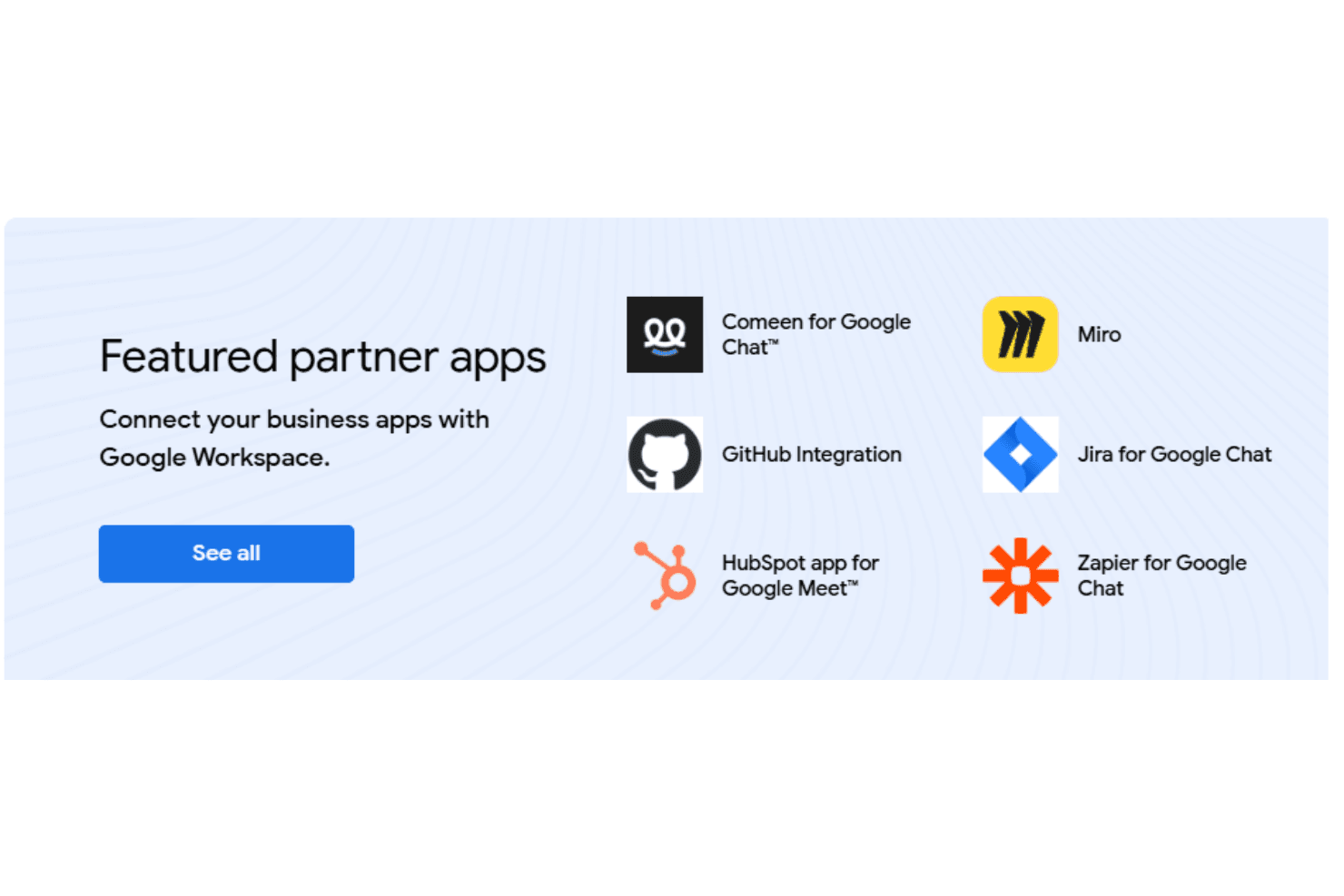
You and your team can edit presentations simultaneously, seeing changes instantly. This makes group work seamless and efficient.
Templates and Themes
Google Slides offers a variety of templates and themes for your presentations. It helps you create professional-looking slides without design skills.
Cloud Storage
Your presentations are stored in the cloud, so you can access them anywhere with an internet connection. This makes sharing and collaborating easy.
Presenter View
You can use Presenter View to see your notes while presenting. It helps you stay organized and focused during your presentation.
Offline Access
You can enable offline access to work on presentations without an internet connection. This is useful for making edits on the go.
Version History
Google Slides keeps a version history of your presentations. You can revert to previous versions if needed, ensuring you never lose important changes.
Ease of Use
Google Slides is easy to use, making it perfect for teams without technical expertise. Its intuitive interface lets you quickly create and edit presentations, while real-time collaboration fosters teamwork. You don't need to download anything, and everything's accessible with an internet connection. User reviews highlight its straightforward design and simple navigation. If you're looking for a hassle-free tool to get presentations done efficiently, Google Slides is a solid choice.
Integrations
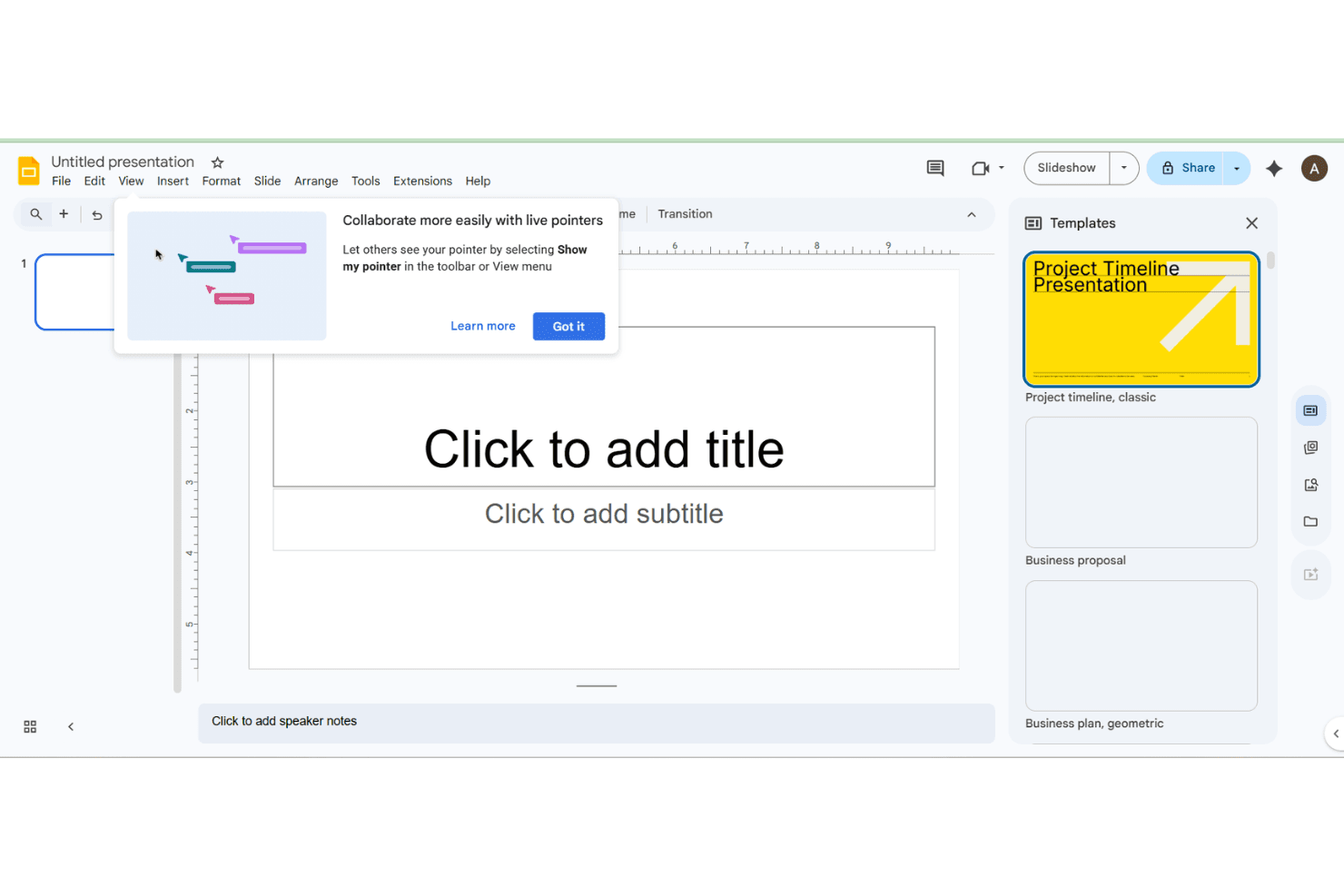
Google Slides integrates natively with a wide array of Google apps including Google Drive, Google Docs, Google Sheets, Google Meet, Gmail, and YouTube, enabling seamless content creation and sharing. It also supports integrations with tools like Miro, Jotform, Typeform, and HubSpot through add-ons, embeds, or automation platforms.
Google Slides provides an API and works with third-party integration tools such as Zapier for extended connectivity.
Google Slides Specs
- API: Yes
- Calendar Management: No
- Chat: Yes
- Data Export: Yes
- Data Import: Yes
- Data Visualization: Yes
- Document Comparison: Yes
- External Integrations: Yes
- History/Version Control: Yes
- Multi-User: Yes
- Notifications: Yes
- Scheduling: No