

Met software voor digitale schermcommunicatie voor kerken kunnen bedieningsteams aankondigingen maken, inplannen en beheren op tv's en schermen in gebedsruimten, entreehallen, klaslokalen en kantoren. Het juiste platform helpt u informatie over diensten, herinneringen aan evenementen, welkomstberichten en dringende updates te delen zonder vrijwilligers te vragen elk scherm handmatig aan te passen.
In deze gids vergelijken we toonaangevende opties op gebruiksgemak, planning, ondersteuning voor meerdere campussen, hardwarecompatibiliteit, machtigingen en prijzen.
Waarom u onze softwareaanbevelingen kunt vertrouwen
6,700+
Reviews
20
Industry experts
16+
Evaluation factors
14
Years
Ons team test en beoordeelt software sinds 2012. Als kerkleiders weten we zelf hoe moeilijk — en belangrijk — het is om de juiste software te kiezen.
Voor deze gids hebben we tools geëvalueerd met behulp van praktijktests en onafhankelijk onderzoek, waarbij we tools beoordeelden aan de hand van onze selectiecriteria.
Onze reviews weerspiegelen ons menselijke redactionele oordeel, geen verkooppraatje.
Vergelijkingstabel: software voor digitale schermcommunicatie voor kerken
Vergelijk prijzen en specificaties naast elkaar voor de software voor digitale schermcommunicatie voor kerken die op mijn shortlist staat:
| Tool | Best For | Trial Info | Price | ||
|---|---|---|---|---|---|
| 1 | Best for hardware church screen scheduling | Free demo + 30-day free trial available | From $14/screen/month (billed annually) | Website | |
| 2 | Best for donor walls and prompt displays | Free demo + 14-day free trial available | From $20/screen/month (billed annually) | Website | |
| 3 | Best for AI announcement slides | Free demo + 14-day free trial available | From $7/screen/month (billed annually) | Website | |
| 4 | Best for organizations on a per-screen budget | 14-day free trial | From $8.95/screen/month (billed annually) | Website | |
| 5 | Best for scheduling by time zone | 14-day free trial | From $13.50/screen/month (billed annually) | Website | |
| 6 | Best for screen management on a budget | Free demo + 14-day free trial available | From $11/screen/month (USD, billed monthly) | Website | |
| 7 | Best for running screens on multiple devices | Free demo + 14-day free trial available | From $13.50/screen/month (billed annually) | Website | |
| 8 | Best for enterprise multi-campus networks | Free demo + 30-day free trial available | From $14/player/month (USD, Cloud Essential) | Website | |
| 9 | Best for scheduling with IT oversight | Free plan available | Pricing upon request | Website | |
| 10 | Best for open-source scheduling | 14-day free trial | From $4.90/screen/month (USD, Xibo Cloud Professional) | Website |


Beoordelingen van software voor digitale schermcommunicatie voor kerken
Hieronder staan mijn samenvattingen van de beste software voor digitale schermcommunicatie voor kerken op mijn shortlist. In mijn beoordelingen bekijk ik de functies, planningsmogelijkheden en prijzen van elke softwareoptie om u te helpen de juiste keuze te maken.
 Best for hardware church screen scheduling
- Free demo + 30-day free trial available
- From $14/screen/month (billed annually)
Visit WebsiteCustomer Rating:4.9/5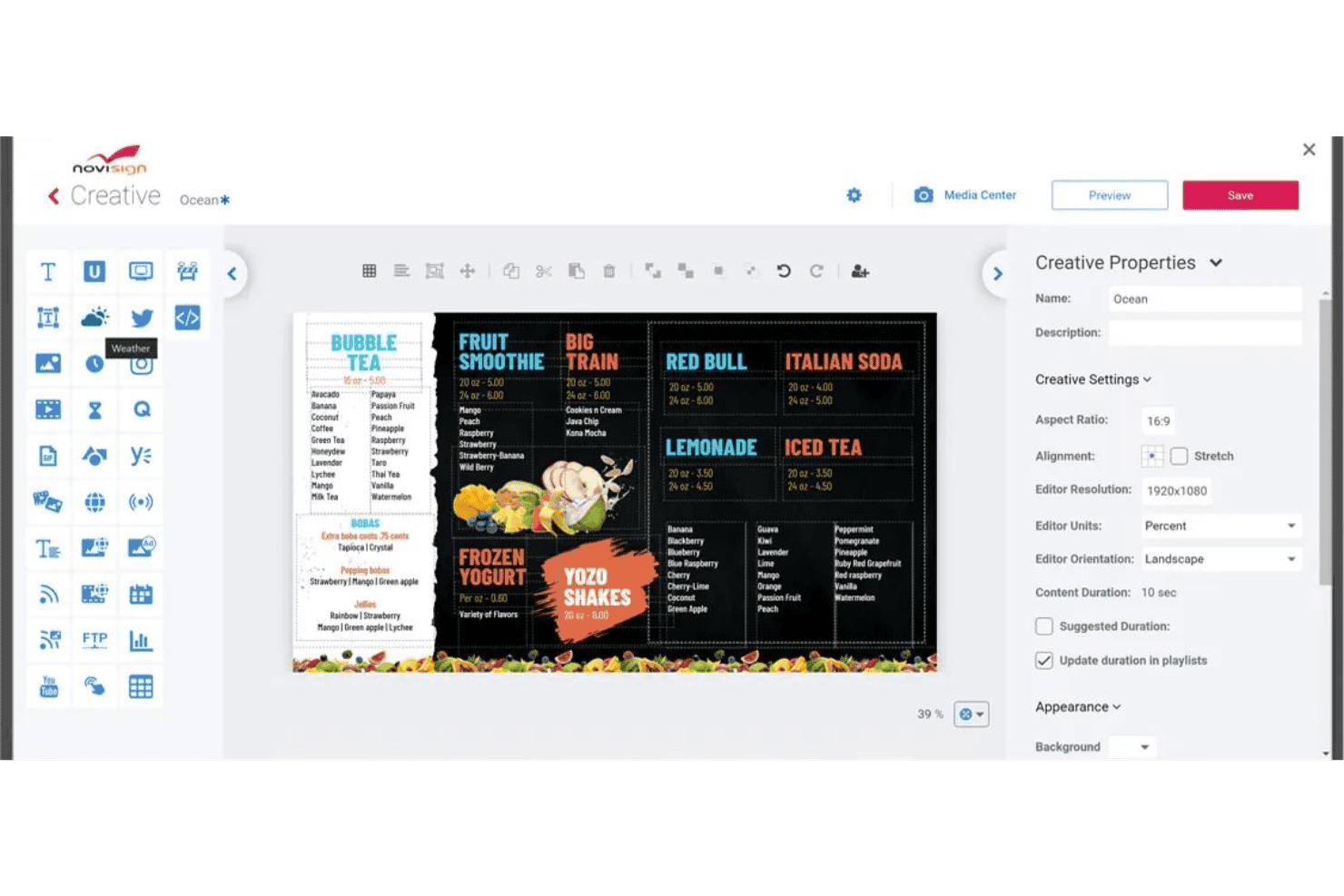
NoviSign lets users design digital menu boards with a drag-and-drop editor. NoviSign is a cloud-based digital signage platform with a dedicated church use case that covers content scheduling, multi-screen remote management, drag-and-drop design tools, and media playback across a wide range of hardware.
Who Is NoviSign Best For?
NoviSign is a strong fit for church IT and facilities staff who need flexible hardware compatibility and remote screen management without investing in proprietary players.
Why I Picked NoviSign
NoviSign earns its spot on my shortlist because of how well it handles hardware flexibility across a church's existing screen setup. I've seen churches run it on sub-$50 Android boxes, Fire TV Sticks, and Samsung Tizen displays, all managed from one browser-based dashboard. Day parting and recurrence scheduling let you push Sunday service announcements in the morning and switch to youth group content by afternoon without touching a single screen on-site.
NoviSign Key Features
- Multi-zone layout editor: Design screens with multiple content zones so you can display a scripture ticker, event graphic, and live stream side by side on the same screen.
- Offline media caching: Players store supported media locally, allowing previously downloaded images and videos to continue playing during temporary internet outages.
- Proof-of-play reporting: Pull reports that confirm which content played, on which screen, and when—useful for tracking announcements across multiple ministry areas.
- Role-based user permissions: The Premium plan lets administrators assign specific access rights to staff and volunteers, allowing them to manage content without full administrative permissions.
NoviSign Integrations
NoviSign offers integrations with Google Calendar, Outlook, Google Drive, Dropbox, SharePoint, and Canva. Business Plus includes Zapier, while Premium provides an Open API for custom integrations.
Pros and Cons
Pros:
- Caches content during internet outages
- Schedules recurring announcements by service time
- Runs across inexpensive existing screen hardware
Cons:
- Worship production workflows remain largely unsupported
- Advanced administration requires higher-tier plans
Learn more about NoviSign: 2Best for donor walls and prompt displays
Fugo
- Free demo + 14-day free trial available
- From $20/screen/month (billed annually)
Visit WebsiteCustomer Rating:4.5/5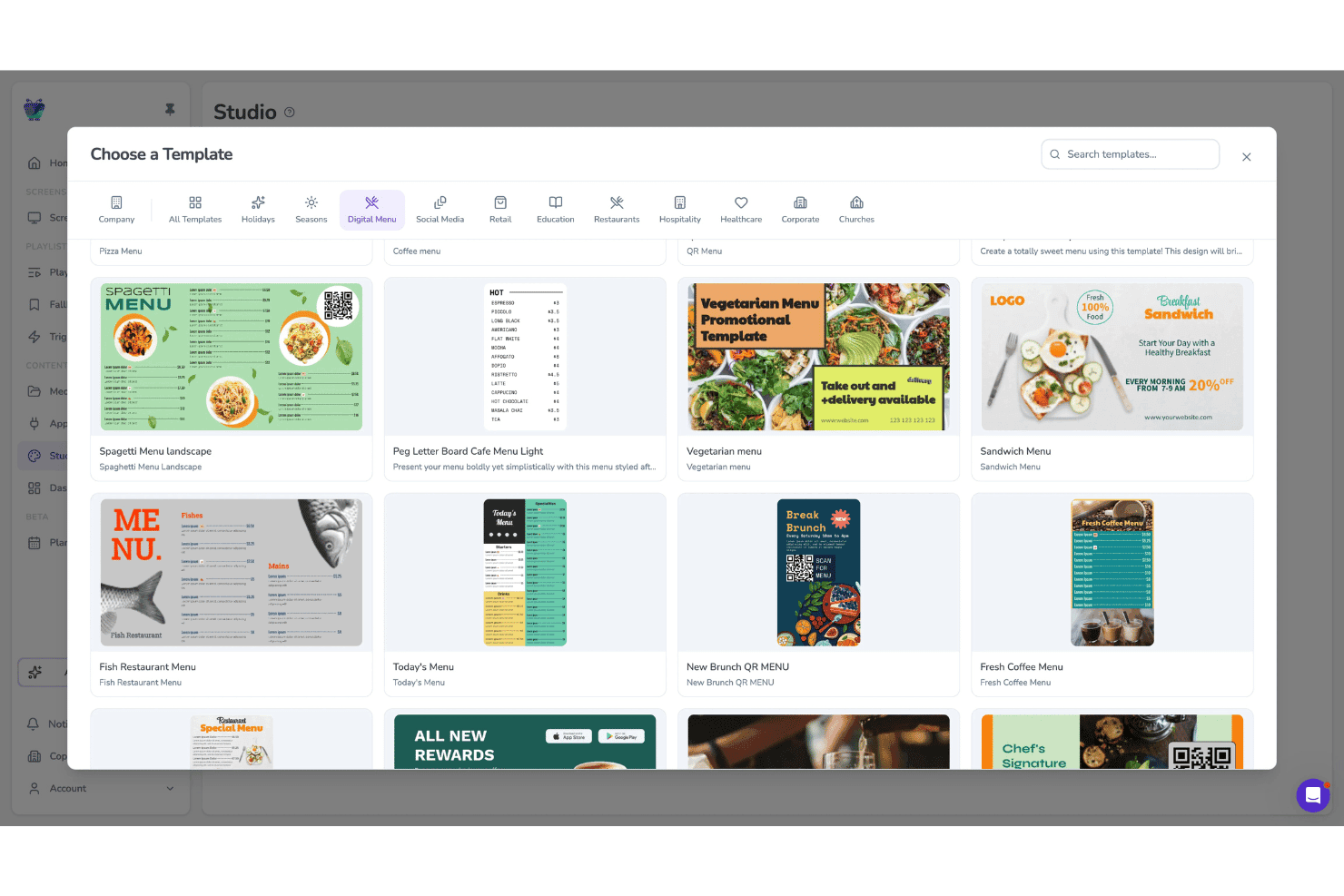
Fugo lets users pick from digital menu templates in Studio. Fugo is a cloud-based digital signage platform built for multi-screen environments, offering church-specific templates, a drag-and-drop Design Studio, scheduled playlists, screen grouping for multi-campus management, and a donor wall display feature.
Who Is Fugo Best For?
Fugo is a strong fit for multi-campus churches that need one dashboard to manage donor walls, giving prompts, and scheduled announcements across multiple screens and locations.
Why I Picked Fugo
I picked Fugo as one of the best because its donor wall feature is genuinely purpose-built for churches: donor names pull live from Google Sheets and campaign totals update in real time, so your building fund or missions display stays current without anyone manually editing a screen. I also love that giving prompts and QR codes are built into the same platform, so a single playlist can move from song lyrics to a giving prompt to a service time without any extra tools.
Fugo Key Features
- Volunteer-friendly Design Studio: A drag-and-drop editor with church-specific templates lets volunteers build and publish screens without design experience.
- Content Planner calendar view: A calendar-based scheduling interface shows all content across every screen, making it easy to spot conflicts before a service.
- Multi-zone layouts: Divide a single screen into independent zones, each playing its own content or rotating through its own carousel.
- Role-based permissions: Control what staff and volunteers can access using assigned roles. Core includes customizable permissions, while Enterprise supports unlimited custom roles for larger church teams.
Fugo Integrations
Fugo lists 47 marketplace integrations, including Google Sheets, Google Calendar, Google Slides, YouTube, Vimeo, Google Drive, Dropbox, and Canva. Enterprise plans include a REST API for custom integrations.
Pros and Cons
Pros:
- Runs on widely available hardware
- Schedules service-specific content and takeovers
- Supports donor walls and giving prompts
Cons:
- Some screens need manual restarts
- Church templates remain limited beyond basics
Learn more about Fugo: Best for AI announcement slides
- Free demo + 14-day free trial available
- From $7/screen/month (billed annually)
Visit WebsiteCustomer Rating:4.5/5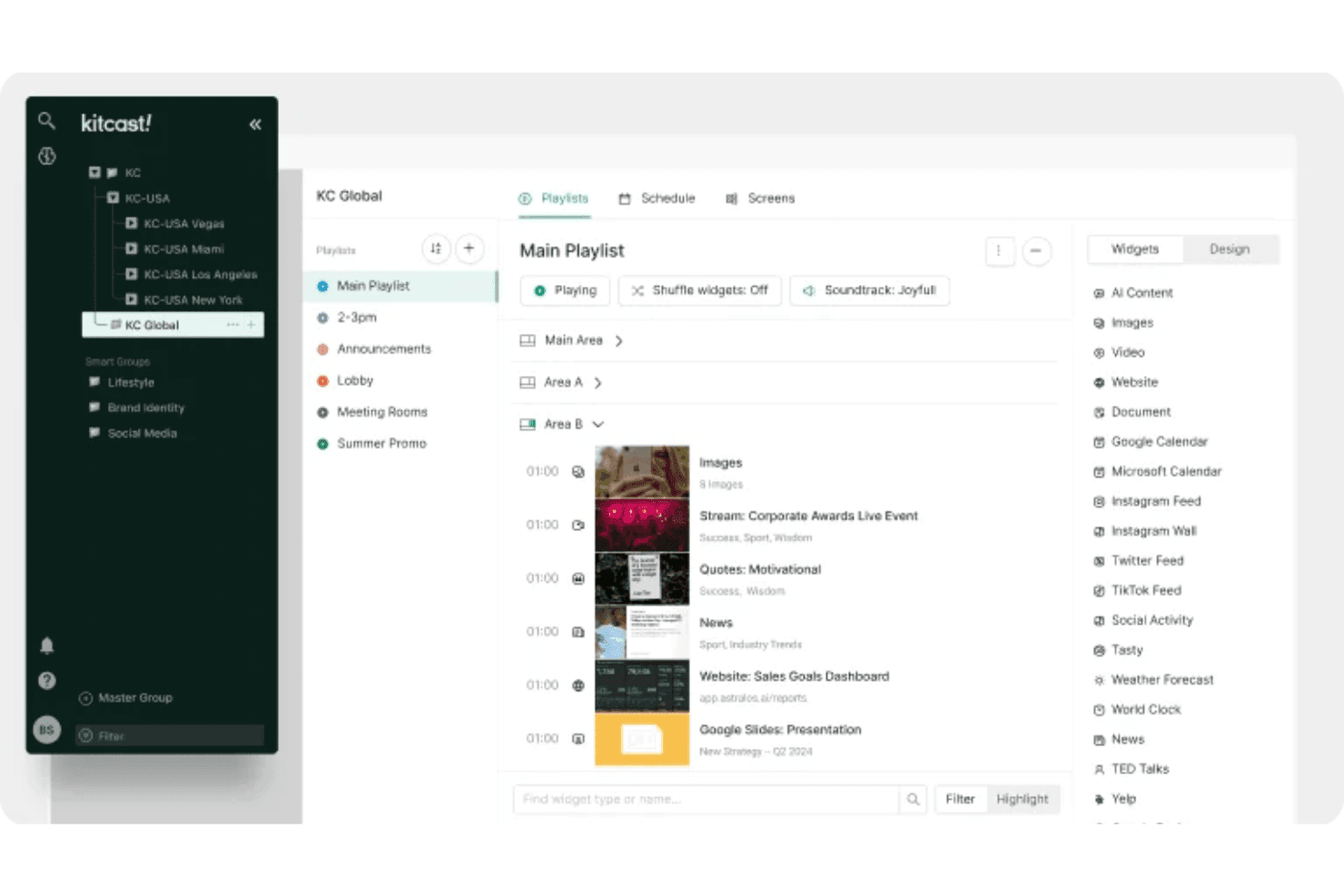
Kitcast lets users organize playlists and widgets across multiple screens. Kitcast is a cloud-based digital signage platform that lets churches manage screen content across lobbies, sanctuaries, hallways, and multi-campus locations using AI-generated announcement slides, 500+ templates, and a Canva integration.
Who Is Kitcast Best For?
Kitcast is a strong fit for church media directors and administrators who want to manage announcement slides, event promotions, and multi-campus screens from a single cloud dashboard without proprietary hardware.
Why I Picked Kitcast
Kitcast earns its spot on my shortlist because of its AI announcement slide generator, which lets you type a brief description and get a fully formatted slide without touching a template. I also like that you can layer in countdown timers and scripture references on sermon series screens, then schedule that content to flip on automatically before a Sunday service. For multi-campus churches, the ability to push church-wide content from a central dashboard while letting each campus manage its own local screens is a genuinely useful split.
Kitcast Key Features
- Multi-campus content targeting: Push church-wide content from a central dashboard while each campus manages its own local screens independently.
- Emergency playlist override: Instantly replace all screen content with urgent messages, with support for CAP alerts on the Pro plan.
- Offline playback caching: Content is stored on each device so screens keep playing even when the internet connection drops.
- Role-based access control: Assign team members different access levels to manage church content and screens. The Pro plan adds advanced roles and permissions for more detailed administrative control.
Kitcast Integrations
Kitcast offers native integrations with Canva, Google Slides, Google Calendar, Microsoft Calendar, Google Workspace, Microsoft 365, SharePoint, YouTube, and Vimeo. Its Pro plan includes a REST API for custom integrations.
Pros and Cons
Pros:
- Offline playback keeps services visible offline
- Multi-campus targeting separates local announcements
- Apple TV deployment suits volunteer teams
Cons:
- Occasional device disconnects complicate remote oversight
- Limited animation restricts sermon slide polish
Learn more about Kitcast: Best for organizations on a per-screen budget
- 14-day free trial
- From $8.95/screen/month (billed annually)
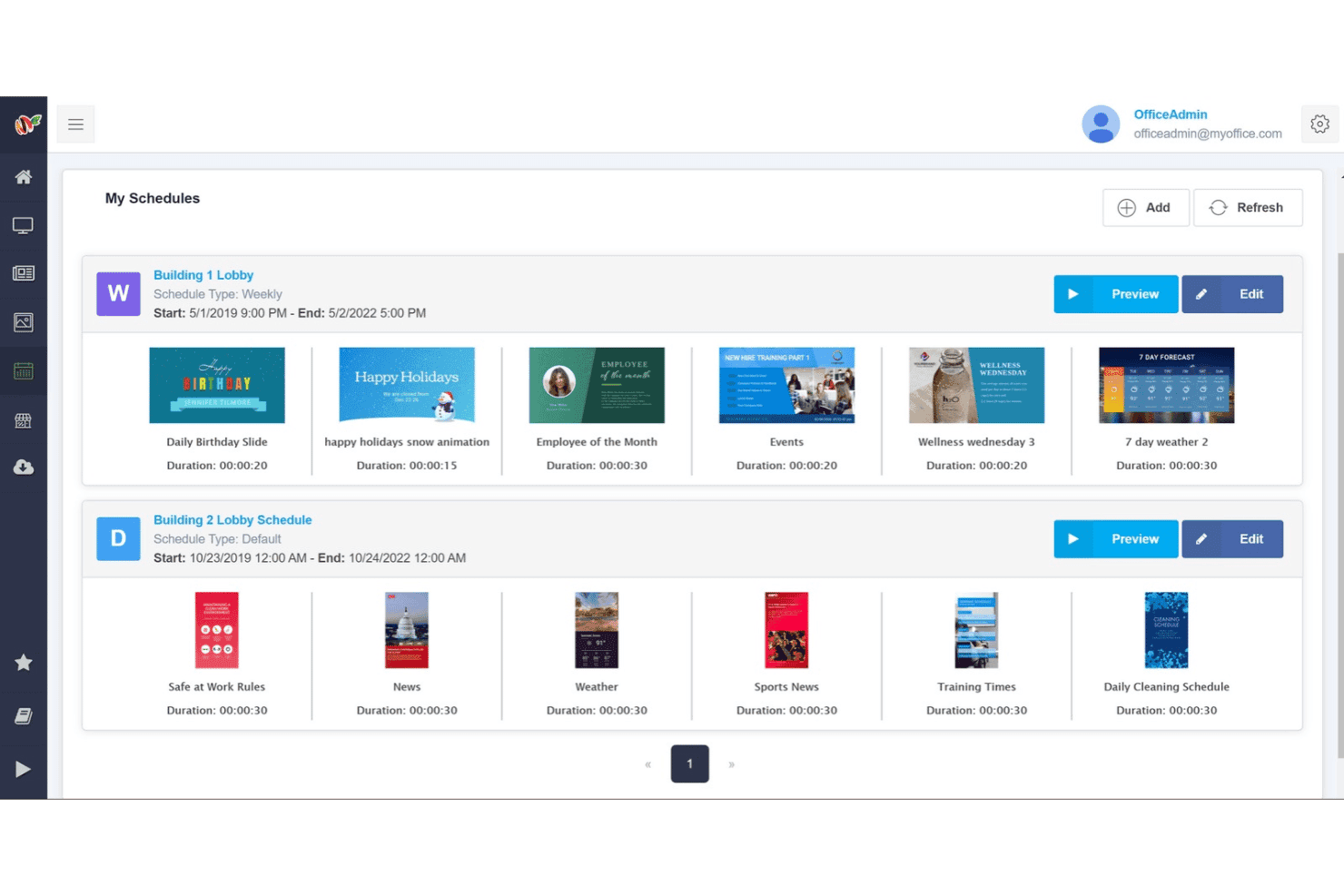
MangoSigns lets users manage and preview scheduled playlists by location. MangoSigns is a cloud-based digital signage platform with a drag-and-drop editor, multi-display scheduling, and broad device compatibility across Fire TV, Android, Windows, and Chrome OS players.
Who Is MangoSigns Best For?
MangoSigns is a good fit for budget-conscious churches that manage multiple screens and want simple, per-screen pricing with no long-term contracts.
Why I Picked MangoSigns
I picked MangoSigns as one of the best because its per-screen pricing model keeps costs predictable when you're managing multiple lobby displays, overflow rooms, or campus locations. I especially like the weekly recurring schedules, which let you lock in your Sunday service rotation once and let it run without weekly rescheduling. The synced playback feature is also genuinely useful: two or more screens start and end each slide simultaneously, which matters when your foyer and hallway displays need to feel like one cohesive experience.
MangoSigns Key Features
- Override schedules: Pause all active content and push a single priority message to your screens for a defined time window.
- Dynamic QR codes: Display scannable QR codes on any screen, useful for directing congregants to giving pages, event registration, or service links.
- Canva integration: Access Canva's template library directly within the editor to design slides without leaving the platform.
- Offline playback: Players continue showing previously downloaded images and videos during internet outages, while live streams and other internet-dependent content still require a connection.
MangoSigns Integrations
MangoSigns supports integrations with Canva, Google Drive, Google Sheets, Google Slides, YouTube, Vimeo, Facebook, Instagram, X, and RSS feeds. It also supports HTML5 and website embeds, but native Planning Center or ProPresenter integrations are not documented.
Pros and Cons
Pros:
- Offline playback keeps announcements visible during outages
- Synced playback coordinates multiple lobby screens
- Detailed recurring schedules suit church programming
Cons:
- Multi-location management requires Enterprise
- Basic excludes premium app integrations
Learn more about MangoSigns: Best for scheduling by time zone
- 14-day free trial
- From $13.50/screen/month (billed annually)
Visit WebsiteCustomer Rating:4.9/5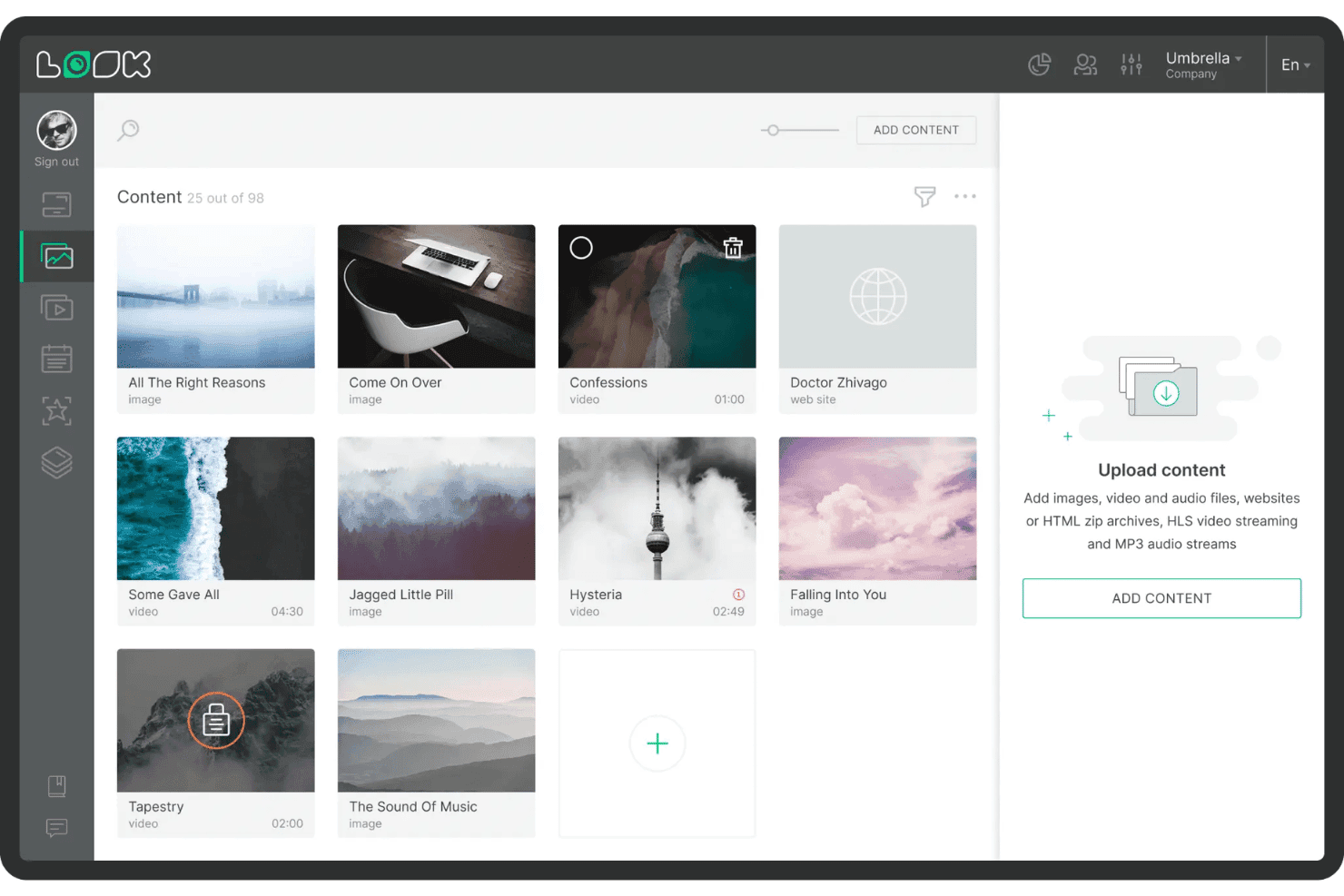
Look Digital Signage lets users upload and manage a media content library. Look Digital Signage is a cloud-based digital signage platform with church-specific templates, multi-zone layout design, Smart Scheduling, and multi-campus screen management across a wide range of devices.
Who Is Look Digital Signage Best For?
Look Digital Signage is a good fit for multi-campus churches that need to manage screen content across locations in different time zones from a single cloud dashboard.
Why I Picked Look Digital Signage
I picked Look Digital Signage as one of the best because its Smart Scheduling is built around time zones, which matters most to multi-campus churches running the same service at different local times. You can assign each campus its own schedule so a 9 a.m. announcement in one city doesn't fire at the wrong hour in another. Playlist Lifetime settings let you block and unblock content automatically around seasonal series or holiday events, without anyone logging in to make manual changes.
Look Digital Signage Key Features
- Church-specific templates: Access hundreds of pre-built templates designed for announcements, event schedules, and service times across lobby, sanctuary, and fellowship hall screens.
- Multi-zone layout builder: Design screens that display multiple content types at once—like a welcome message, countdown timer, and scripture ticker—using a drag-and-drop editor.
- QR code generator: Create and embed QR codes directly in your content to link congregation members to giving pages or Wi-Fi access.
- Offline playback: Content stored on each player continues running during internet outages and syncs automatically when the connection is restored.
Look Digital Signage Integrations
Look Digital Signage offers native integrations with Google Calendar, Microsoft Outlook Calendar, Google Slides, YouTube, and Facebook, including live video. It also provides an open API and Zapier, but no native ProPresenter or church management system integrations are documented.
Pros and Cons
Pros:
- Runs across smart TVs and low-cost players
- Offline playback continues during internet outages
- Time-zone scheduling supports multi-campus services
Cons:
- Large media files can upload slowly
- Phone-browser editing feels awkward
Learn more about Look Digital Signage: Best for screen management on a budget
- Free demo + 14-day free trial available
- From $11/screen/month (USD, billed monthly)
Visit WebsiteCustomer Rating:4.8/5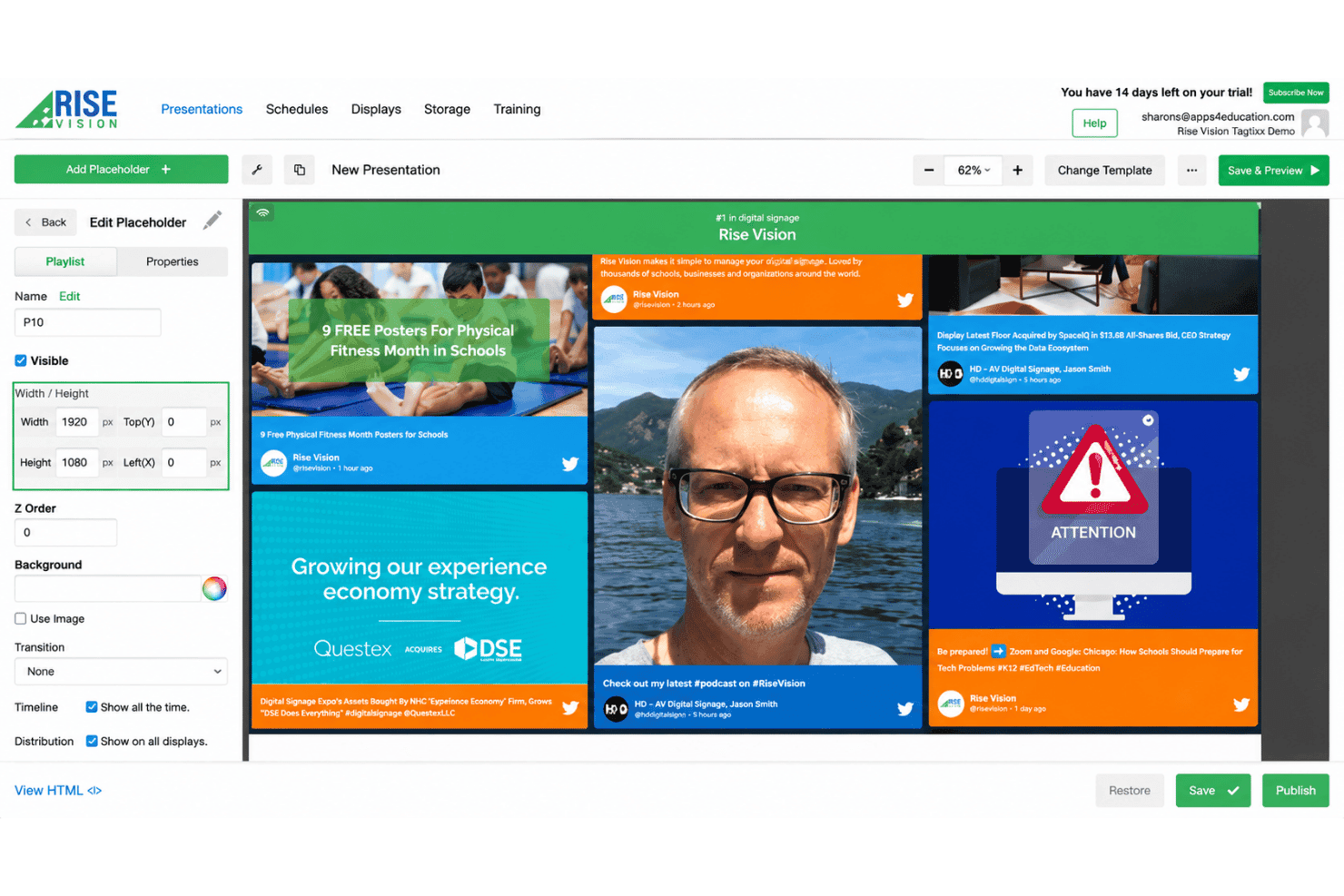
Rise Vision lets users build and customize digital signage presentations. Rise Vision is a cloud-based digital signage platform that supports multi-display scheduling, playlist management, emergency alert overrides, and live stream playback across multiple screens and locations.
Who Is Rise Vision Best For?
Rise Vision is a good fit for churches and multi-campus ministries that need to manage screens across several locations without a large IT team or budget.
Why I Picked Rise Vision
I picked Rise Vision as one of the best because it lets churches run multi-display networks across several campuses without spending a lot. Unlimited users, device monitoring, and remote reboot mean your team can manage every screen from one cloud dashboard without needing on-site IT support. I also like that it works with hardware you already own, from Amazon Signage Sticks to Raspberry Pi, so you're not forced into expensive proprietary players.
Rise Vision Key Features
- CAP emergency alert override: Available on Advanced and Enterprise plans, this feature connects to Common Alerting Protocol providers like Singlewire, Alertus, and Raptor to override scheduled content with urgent messages.
- Calendar-synced content updates: Advanced and Enterprise plans support Google Calendar, Microsoft Outlook Calendar, and iCal feeds to automatically update worship schedules and event information on displays.
- Nested playlist scheduling: Lets you build playlists inside playlists with expiration dates and repeating schedules so content rotates correctly across different services.
- AI design tool: Generates branded, animated presentations from a written prompt, giving volunteers and staff without design experience a fast way to create polished content.
Rise Vision Integrations
Rise Vision lists 35+ integrations, including Google Calendar, Google Sheets, Google Slides, Microsoft 365, Canva, YouTube, Facebook, Instagram, Power BI, and Domo. It also supports HLS streams and Common Alerting Protocol providers.
Pros and Cons
Pros:
- Offline playback keeps screens running during outages
- Supports remote reboot and device monitoring
- Manages multi-campus screens from one dashboard
Cons:
- Text widgets can confuse new editors
- Custom layouts often require outside design tools
Learn more about Rise Vision: Best for running screens on multiple devices
- Free demo + 14-day free trial available
- From $13.50/screen/month (billed annually)
Visit WebsiteCustomer Rating:4.8/5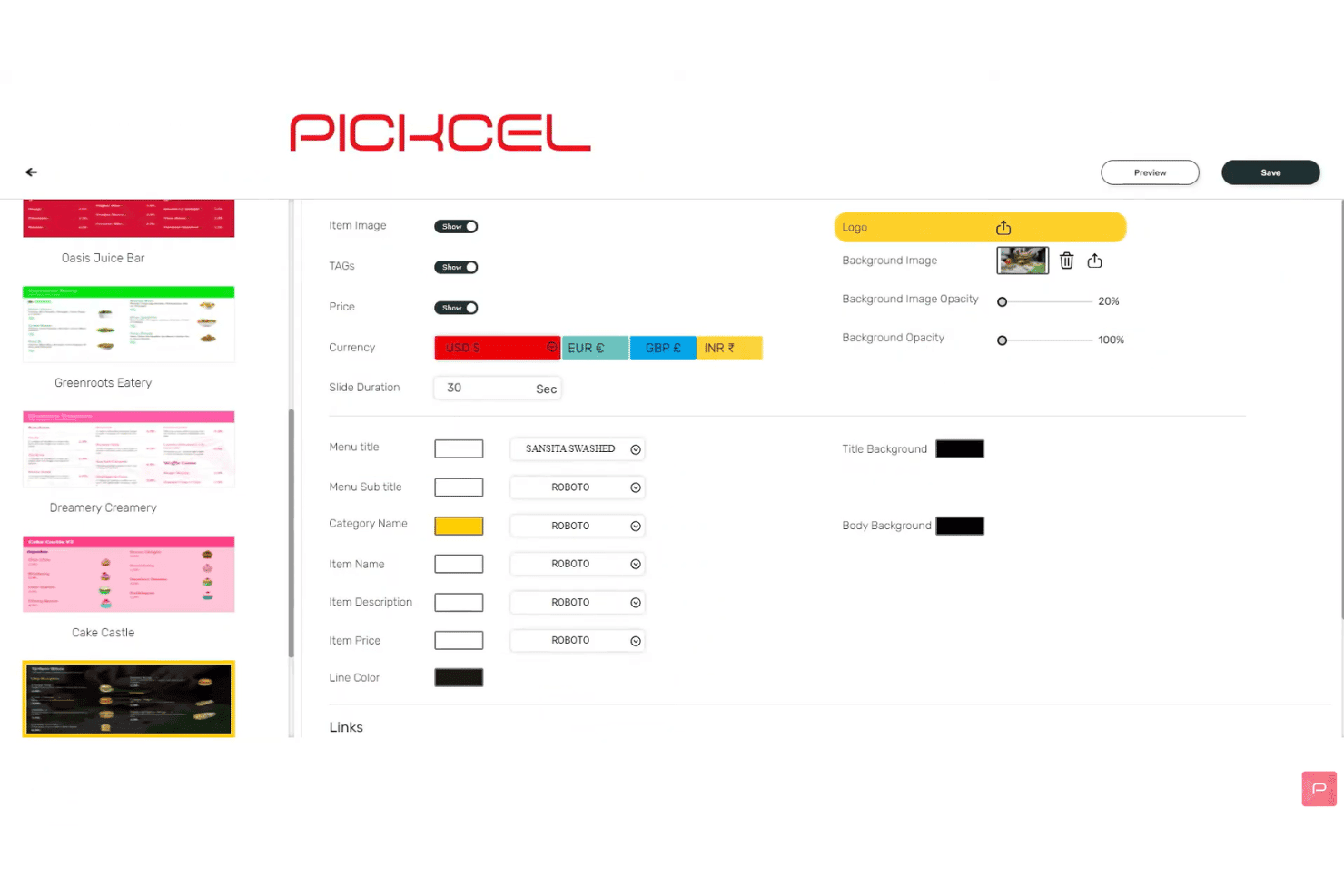
Pickcel lets users customize digital menu fonts, colors, and currency settings. Pickcel is a cloud-based digital signage platform that supports content scheduling, multi-display management, live streaming, and design tools across an unusually wide range of device types and operating systems.
Who Is Pickcel Best For?
Pickcel is a strong fit for churches with IT staff or technically comfortable administrators who need to run content across many screens and device types without investing in new hardware.
Why I Picked Pickcel
I picked Pickcel because it advertises support for 10 operating systems and more than 50 device types, including Fire TV and specific Raspberry Pi models. That makes it worth considering when a church already owns different kinds of equipment, although each model still needs a compatibility check. I also like that Business adds content synchronization and multi-user capabilities for teams coordinating several displays.
Pickcel Key Features
- Advanced content scheduler: Set content to run by time, day, location, or date range, with dayparting support to rotate different content throughout a service day.
- Multi-zone layout editor: Build screen layouts with multiple independent zones, each running its own playlist, using the built-in Artboard editor or Canva.
- Live streaming apps: Display live worship services using compatible stream URLs, while Business and Enterprise plans add Zoom event streaming and mobile-device streaming for overflow rooms.
- Volunteer access roles: Business and Enterprise plans support multiple users with role-based permissions, allowing trusted staff and volunteers to manage content without full administrative access.
Pickcel Integrations
Pickcel offers native integrations with Canva, Google Slides, Microsoft 365, OneDrive, SharePoint, YouTube, Zoom, Facebook, Instagram, and X. Business and Enterprise plans also provide API and Zapier access for additional integrations.
Pros and Cons
Pros:
- Emergency publishing interrupts scheduled content
- Centralizes screens across multiple campuses
- Runs on 50-plus device types
Cons:
- Volunteer access is limited initially
- Synchronized playback is Android-only
Learn more about Pickcel: Best for enterprise multi-campus networks
- Free demo + 30-day free trial available
- From $14/player/month (USD, Cloud Essential)
Visit WebsiteCustomer Rating:4.3/5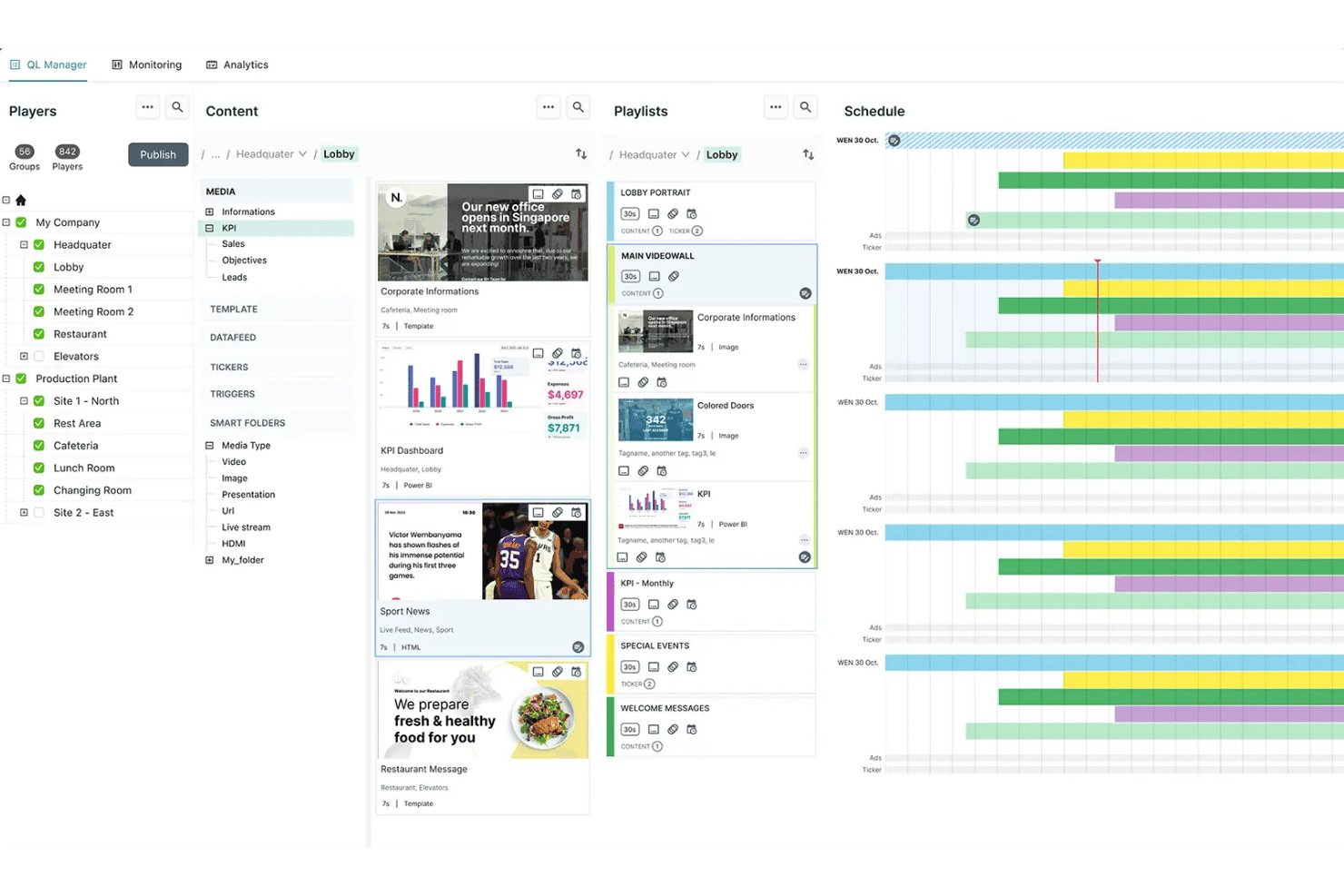
Navori QL Manager organizes content, playlists, and schedules across locations. Navori is an enterprise-grade digital signage platform built around centralized content scheduling, multi-site player management, role-based permissions, and live data integrations across large screen networks.
Who Is Navori Best For?
Navori is a strong fit for multi-campus churches with dedicated IT staff who need centralized control over large screen networks across multiple locations.
Why I Picked Navori
I've included Navori in my top picks because it's one of the few digital signage platforms that can genuinely scale across a multi-campus church network without losing centralized control. I particularly like how its national, regional, and local playlist management lets a central team push content while still giving each campus the ability to manage its own screens. Navori's role-based permissions and approval workflows mean you can delegate screen access by location without handing over full admin rights to every site coordinator.
Navori Key Features
- Emergency alert override: Navori connects to Common Alerting Protocol (CAP) feeds and OmniAlert to override scheduled content with safety alerts, evacuation routes, or weather warnings across targeted screens.
- Microsoft 365 and Google Calendar sync: Pull live event data directly into your templates and ticker overlays so lobby screens always reflect your current service and event schedule.
- Multi-zone template designer: Build screen layouts with multiple content zones, layering, and transparency controls using a drag-and-drop editor that works at any screen size or orientation.
- Conditional content triggers: Set rules that automatically swap in specific content when a defined condition is met, such as time of day, weather, or a live data value.
Navori Integrations
Navori supports Microsoft 365 and Google Calendar integrations, Common Alerting Protocol (CAP) feeds, and OmniAlert. It also works with the separate Screenfeed Connect service and supports custom integrations through its API. Native integrations with ProPresenter, Planning Center, or church management systems (ChMS) are not documented.
Pros and Cons
Pros:
- Provides emergency alert overrides across displays
- Handles large networks with synchronized playback
- Centralizes multi-campus screen management
Cons:
- Interface can overwhelm volunteer administrators
- Complex deployments require technical oversight
Learn more about Navori:
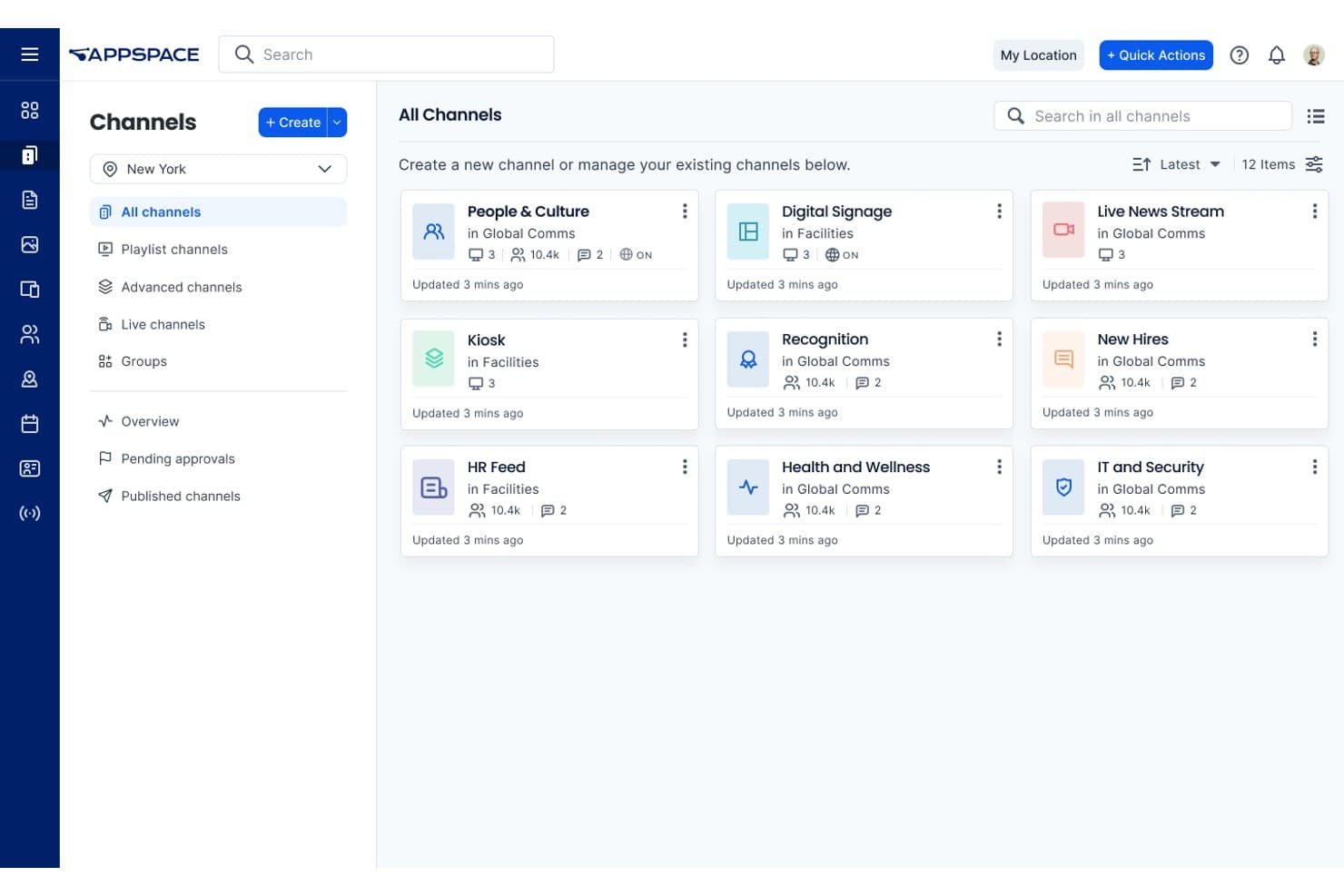
Appspace organizes internal communications into categorized channels. Appspace is a cloud-based digital signage platform with multi-site content scheduling, role-based permissions, live channel streaming, and device management across a wide range of display hardware.
Who Is Appspace Best For?
Appspace is a strong fit for larger, multi-campus churches with dedicated IT staff who need precise content scheduling and location-based targeting across many screens.
Why I Picked Appspace
I picked Appspace as one of the best because of how precisely it handles content scheduling across multiple locations with IT-level control built in. Its three-tier scheduling system lets you set timing at the individual content item, playlist, and layout level, so a campus IT coordinator can schedule a Sunday morning service announcement to appear only during specific hours, on specific screens, at specific locations. The role-based permission structure, including Publisher, Editor, and Scheduler roles with approval workflows, means your IT team retains oversight without micromanaging every content update.
Appspace Key Features
- Emergency alert override: Send critical broadcasts to targeted screens as full-screen takeovers or notifications, triggered manually or through integrated third-party alert systems.
- Live channel streaming: Appspace supports HLS and multicast streams, letting you send a live service feed to overflow rooms or secondary campus screens.
- Multi-zone layout scheduling: Multizone Signage Channels let you divide screens into independent media zones, each running its own playlist on its own schedule.
- Offline content caching: Compatible devices store content locally, allowing scheduled media to continue playing during temporary internet outages.
Appspace Integrations
Appspace integrations include Google Sheets, Google Slides, YouTube, Microsoft Teams, SharePoint, Vbrick, MediaStar, and Haivision. It also supports HLS and multicast streams for live service broadcasts, though Planning Center and ProPresenter integrations aren’t documented.
Pros and Cons
Pros:
- Supports live overflow-room broadcasts
- Targets screens by location and tags
- Schedules content across multiple campuses
Cons:
- Screens may occasionally fall out of sync
- Interface can overwhelm volunteer editors
Learn more about Appspace: 10Best for open-source scheduling
Xibo
- 14-day free trial
- From $4.90/screen/month (USD, Xibo Cloud Professional)
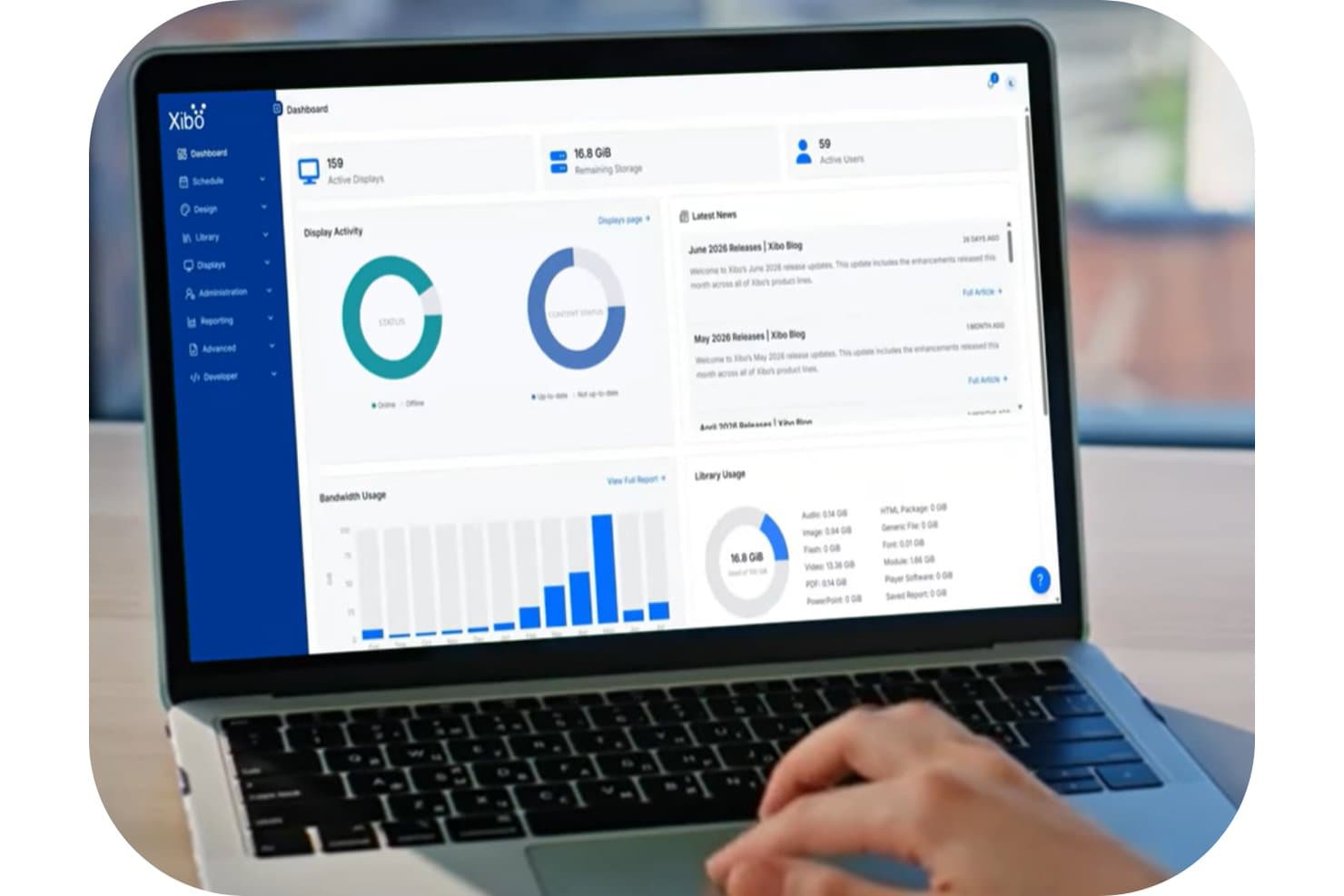
Xibo's dashboard gives users a real-time overview of displays, storage, and bandwidth. Xibo is an open-source digital signage platform with a web-based CMS that lets you schedule, manage, and display content across multiple screens using tools like daypart scheduling, dynamic display groups, media playlists, and live HLS streaming.
Who Is Xibo Best For?
Xibo is a good fit for church administrators and IT-comfortable staff who want a budget-friendly, hardware-flexible signage platform and don't mind building their own workflows for ministry-specific needs.
Why I Picked Xibo
I picked Xibo as one of the best because its open-source scheduling depth is genuinely hard to match at this price point. I love that you can build daypart schedules for each service slot, layer in interrupt layouts for urgent announcements, and push updates to every screen the moment you save. For multi-campus setups, nested dynamic display groups mean a new screen automatically inherits the right schedule the moment it comes online.
Xibo Key Features
- Dynamic display groups: Automatically assign screens to groups using name or tag filters, so a new display inherits the right schedule the moment it comes online.
- Emergency Alerts widget: Pulls live Common Alerting Protocol (CAP) feeds and triggers an alert layout only when an active alert is detected.
- HLS live streaming: Embed an existing HLS live stream directly into a layout to display worship services on screens in overflow rooms.
- DataSets: Build tables fed by CSV or remote JSON to display real-time event or service information pulled from an external data source.
Xibo Integrations
Xibo supports integrations with Canva, Pixabay, Google Calendar via iCal, Mastodon, National Weather Service, and CAP alert providers. It also connects to CSV or remote JSON data sources and offers an OAuth2 JSON API for custom integrations.
Pros and Cons
Pros:
- Priority alerts override scheduled worship content
- Offline playback survives network interruptions
- Nested display groups inherit schedules automatically
Cons:
- Self-hosting demands ongoing technical administration
- Volunteers may struggle with layout setup
Learn more about Xibo:
Andere software voor digitale schermcommunicatie voor kerken
Hier zijn enkele aanvullende opties die mijn toplijst niet hebben gehaald, maar die toch de moeite waard zijn om te bekijken:
- 11YodeckBest for signage with free hardware
- 12OptiSignsBest for multi-campus announcements
- 13ScreenCloudBest for live stream overrides and alert display
- 14TelemetryTVBest for cloud-managed screens run by IT teams
- 15ScreenlyBest for zero open ports
- 16JuunoBest for non-technical staff
- 17MvixBest for one-time hardware with lifetime licenses
- 18DotSignageBest for low-cost display run by volunteers
- 19AIScreenBest for emergency alert overrides
How I Evaluate Digital Signage Software for Churches
I split my evaluation into three parts. Core functionality carries the most weight: I look for tools that let you schedule content remotely and manage multiple displays from one dashboard. From there, I check standout features like volunteer-friendly editors, then consider pricing and support.
Core Functionality (Table Stakes for This List)
When I'm selecting tools for my list, I score each one on a scale from 0 (does not offer the functionality) to 5 (excels in this area) for each core functionality listed below. I then convert the total into a percentage to help assess each tool's overall fit, with extra weight on any functionalities I've deemed essential.
- Remote Content Scheduling (Essential): I check whether you can upload, schedule, and push updates to every screen from one dashboard without visiting each display in person.
- Multi-Display Management (Essential): Tools should let you group and target screens across buildings or campuses, so a lobby TV and a sanctuary display can show different content simultaneously.
- Media Format Support: I look for broad format coverage including images, video, slides, and live feeds, since churches often mix announcement slides with sermon clips or streaming content.
- Template and Layout Tools: Drag-and-drop editors and ready-made templates matter because volunteers and staff need to create polished screens without opening separate design software.
- Playlist and Rotation Control: I evaluate how playlists handle duration, order, and time-based rules, like rotating welcome slides before a morning service and switching to event promos in the afternoon.
- Device and Player Compatibility: Platforms like Rise Vision and Yodeck support common hardware such as smart TVs and low-cost media players, so I check that a tool works with gear churches already own.
Once I have a list of tools that meet the criteria, I consider what sets each platform apart.
Differentiating Factors (What Sets Vendors Apart)
Here's how I compare and contrast different vendors:
Standout Features
I check whether a platform can override scheduled content with emergency alerts, since a weather warning or lockdown notice needs to reach affected screens quickly. Giving and QR prompt overlays also matter—tools like Fugo and Yodeck let you display donation links or event registration codes during services without building separate slides. I look for volunteer-friendly editors that let rotating teams update announcements with minimal training, reducing the load on paid staff.
Beyond Features
I check whether vendors offer nonprofit or ministry-specific pricing, since per-screen licensing can stretch a small church budget fast while flat-rate plans suit multi-campus networks better. Offline playback matters too—if your satellite campus loses internet mid-service, local caching on players from vendors like Yodeck or Rise Vision keeps content running. I also evaluate how quickly volunteer teams can get up to speed, looking for guided onboarding resources and low-training-curve dashboards that reduce reliance on paid IT staff.
Software voor digitale schermcommunicatie voor kerken kiezen
Kies een platform door de communicatiebehoefte, beschikbare vrijwilligerscapaciteit en schermomgeving van uw kerk af te stemmen op duidelijke aankoopvereisten.
| Als uw prioriteit is | Zoek dan naar |
|---|---|
| Als uw prioriteit isCampusspecifieke aankondigingen | Zoek dan naarSchermgroepen en machtigingen op campusniveau |
| Als uw prioriteit isDoor vrijwilligers beheerde updates | Zoek dan naarEen editor waarvoor minimale training nodig is |
| Als uw prioriteit isContinuïteit op de dag van de dienst | Zoek dan naarLokale caching van content tijdens internetstoringen |
| Als uw prioriteit isBudgetbeheersing | Zoek dan naarPrijzen per scherm, voorwaarden voor non-profitorganisaties en hardwarekosten |
Uw shortlist beoordelen
- Test een echte aankondiging: Maak tijdens een gratis proefperiode een welkomstslide, plan deze in voor zondagochtend en wijzig de weergavetijd.
- Controleer de campustoewijzing: Vraag de leverancier om een schriftelijk voorbeeld van schermgroepen waarin verschillende content voor twee campussen wordt weergegeven.
- Test de toegang voor vrijwilligers: Nodig twee niet-technische vrijwilligers uit en noteer of zij binnen 30 minuten een update over een evenement kunnen publiceren.
- Leg het gedrag tijdens storingen vast: Vraag om schriftelijke documentatie over het afspelen en test één losgekoppelde speler gedurende ten minste 20 minuten.
- Kies uw bedrijfsmodel: Bepaal of u kiest voor een goedkoper platform waarvoor de kerk meer installatie en beheer moet verzorgen, of voor een duurdere dienst met meer betrokkenheid van de leverancier.
Wat is software voor digitale schermcommunicatie voor kerken?
Software voor digitale bewegwijzering stelt bedieningsteams in staat om content op verbonden schermen te maken, in te plannen en te beheren. Je kunt het gebruiken om details over diensten, herinneringen aan evenementen, welkomstberichten, oproepen tot donaties en dringende updates te delen in gebedsruimtes, entrees, klaslokalen en kantoren. Deze platforms bevatten vaak schermgroepen, afspeellijsten, sjablonen, publiceren op afstand en ondersteuning voor afbeeldingen, video's, dia's en livefeeds.
Functies
Dit zijn de belangrijkste functies waar ik op let bij software voor digitale bewegwijzering voor kerken:
- Planning op afstand: Maak aankondigingen, wijs weergavetijden toe en publiceer updates vanuit één dashboard zonder elk scherm te bezoeken.
- Beheer van meerdere schermen: Organiseer schermen in groepen per locatie, gebouw of ruimte en stuur vervolgens verschillende content naar elke groep.
- Ondersteuning voor media-indelingen: Toon afbeeldingen, video's, presentaties, webpagina's en livefeeds voor diensten, evenementen en updates vanuit de bediening.
- Sjablonen en indelingen: Gebruik kant-en-klare ontwerpen of hulpmiddelen met slepen en neerzetten om goed leesbare aankondigingen te maken zonder afzonderlijke ontwerpsoftware.
- Afspeellijsten en rotaties: Rangschik content in een specifieke volgorde, stel weergaveduur in en plan verschillende afspeellijsten voor diensten of tijdstippen van de dag.
- Compatibiliteit met apparaten: Verbind gangbare smart-tv's, mediaspelers en speciale apparaten voor digitale bewegwijzering met bestaande schermen en apparatuur.
- Gebruikersrechten: Wijs publicatierechten toe op basis van rollen, zodat vrijwilligers goedgekeurde content kunnen bijwerken zonder systeembrede instellingen te wijzigen.
- Offline afspelen: Laat eerder gedownloade afbeeldingen en video's afspelen tijdens tijdelijke internetstoringen, terwijl livestreams en andere online content nog steeds een verbinding vereisen.
- Overschrijven van waarschuwingen: Vervang geplande content door dringende berichten, zoals weerswaarschuwingen, veiligheidsberichten of sluitingen van gebouwen.
Voordelen
Dit zijn enkele veelvoorkomende voordelen die je kunt verwachten van software voor digitale bewegwijzering voor kerken:
- Updates op afstand: Publiceer details over diensten, herinneringen aan evenementen en dringende berichten vanuit één dashboard zonder elk scherm te bezoeken.
- Gerichte communicatie: Groepeer schermen per locatie, gebouw of ruimte om relevante content aan verschillende gemeenschappen te tonen.
- Consistente berichtgeving: Plan afspeellijsten, sjablonen en rotaties zodat elk scherm op het juiste moment goedgekeurde aankondigingen toont.
- Publiceren dat geschikt is voor vrijwilligers: Gebruik editors met slepen en neerzetten en kant-en-klare indelingen, zodat vrijwilligers updates kunnen maken zonder afzonderlijke ontwerpsoftware.
- Continuïteit op dagen met diensten: Laat spelers geplande content lokaal opslaan, zodat schermen tijdens tijdelijke internetstoringen content blijven afspelen.
- Flexibele contentlevering: Combineer afbeeldingen, video's, presentaties, webpagina's, livefeeds en QR-codes voor donaties of registraties.
- Overschrijven van noodwaarschuwingen: Overschrijf geplande content met weerswaarschuwingen, veiligheidsberichten of berichten over de sluiting van gebouwen op geselecteerde schermen.
Kosten en prijzen
De kosten variëren op basis van het aantal schermen, de functies, ondersteuning en hardware. Dit zijn de prijsbereiken die je doorgaans van platforms voor digitale bewegwijzering kunt verwachten:
Vergelijkingstabel van abonnementen voor software voor digitale bewegwijzering voor kerken
| Type abonnement | Gemiddelde prijs | Veelvoorkomende functies |
|---|---|---|
| Type abonnementGratis abonnement | Gemiddelde prijs$0/maand | Veelvoorkomende functiesBasissjablonen, beperkte opslag, ondersteuning voor één scherm en ondersteuning door de community. |
| Type abonnementPersoonlijk abonnement | Gemiddelde prijs$5–$25/scherm/maand | Veelvoorkomende functiesPlanning op afstand, ondersteuning voor afbeeldingen en video's, beheer van afspeellijsten en basissjablonen. |
| Type abonnementZakelijk abonnement | Gemiddelde prijs$10–$75/scherm/maand | Veelvoorkomende functiesBeheer van meerdere schermen, schermgroepen, gebruikersrechten, offline afspelen en prioriteitsondersteuning. |
| Type abonnementOndernemingsabonnement | Gemiddelde prijs$16–$200+/scherm/maand | Veelvoorkomende functiesGeavanceerde rechten, beheer op locatieniveau, noodwaarschuwingen, speciale ondersteuning en aangepaste integraties. |
Veelgestelde vragen
Enkele antwoorden op veelgestelde vragen over software voor digitale schermen in kerken:
Hoeveel mensen moeten toegang hebben tot het platform voor digitale schermen?
Geef publicatietoegang aan medewerkers en vrijwilligers die regelmatig mededelingen bijwerken. Wijs afzonderlijke rollen toe wanneer het platform die ondersteunt, zoals beheerder, redacteur of kijker. Houd systeembrede instellingen bij aangewezen beheerders. Gebruik waar beschikbaar tools voor het indienen en goedkeuren van content, zodat leiders van bedieningen kunnen bijdragen zonder controle over elk scherm te hebben. Bepaal vóór de ingebruikname wie evenementgegevens, diensttijden, donatielinks en noodberichten controleert.
Hoe kan een kerk ervoor zorgen dat scherminhoud correct blijft?
Gebruik een gedeelde contentkalender en wijs iemand aan om elke week geplande mededelingen te controleren. Voeg vervaldatums toe wanneer het platform dit ondersteunt. Controleer terugkerende afspeellijsten vóór belangrijke diensten, feestdagen en seizoensgebonden programma’s. Stel een consistente naamgevingsconventie voor bestanden op, zoals “2026-10 Herfstretraitehal.” Controleer zowel de fysieke schermen als het dashboard om verouderde berichten, onjuiste tijden, onleesbare content, niet-werkende QR-links en verkeerde campuskoppelingen op te sporen.
Wat moet een kerk testen voordat zij een platform voor digitale schermen kiest?
Test de workflow die je kerk na de aankoop verwacht te gebruiken. Upload een welkomstslide, plan deze voor een dienst, richt deze op een schermgroep en bewerk de weergavetijd. Test video, streaming, machtigingen en afspelen zonder verbinding op de beoogde speler. Controleer of bestaande apparatuur wordt ondersteund of dat aanvullende hardware nodig is. Betrek vrijwilligers bij de proef en leg vast waarbij zij hulp nodig hebben, in plaats van uitsluitend te vertrouwen op de ervaring van een beheerder.
Hoe kunnen kerken digitale schermen toegankelijk maken voor meer mensen?
Gebruik grote, goed leesbare tekst, een sterk contrast en berichten die lang genoeg zichtbaar blijven om ze te kunnen lezen. Vermijd het om essentiële informatie uitsluitend via kleur of snel bewegende animatie over te brengen. Voeg waar passend ondertiteling toe aan video’s en bied een alternatief voor informatie die alleen via een QR-code beschikbaar is. Test de leesbaarheid en scanbaarheid op realistische kijkafstanden en bij de verlichting van elke ruimte. Geef vrijwilligers een checklist om content vóór publicatie te controleren.